> ## Documentation Index
> Fetch the complete documentation index at: https://docs.soneka.africa/llms.txt
> Use this file to discover all available pages before exploring further.
# AI Agents: Automate WhatsApp Replies with Your Data
> Deploy AI agents trained on your own knowledge base in Soneka. Supports OpenAI, Claude, Gemini, Mistral, and ElevenLabs across chat and voice channels.
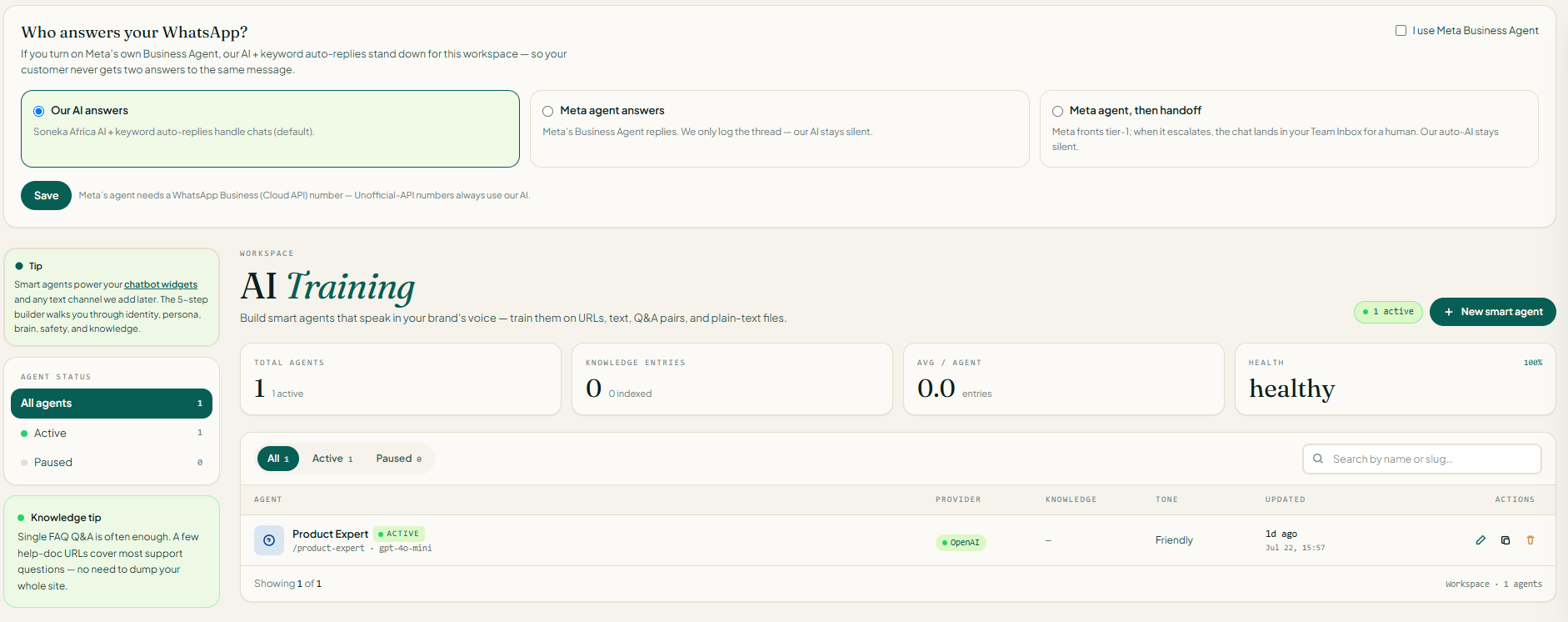
AI Agents in Soneka let you put intelligent, context-aware automation at the front line of your WhatsApp conversations. Instead of rigid keyword rules or decision trees, an AI agent understands natural language, draws answers from your own documents and URLs, and hands off to a human agent the moment a situation requires it. Whether you're handling hundreds of support queries a day or qualifying leads at midnight, an AI agent works around the clock without missing a message — and without exposing customer data to the underlying model.
 ## What an AI Agent Can Do
The agent searches your knowledge base to find accurate answers and responds in natural, conversational language — in the customer's own language if needed.
Ask pre-defined qualifying questions, collect contact details, and push structured data to your CRM or a connected flow.
Detect when a customer is frustrated, asks a question the agent can't answer, or explicitly requests a human — then seamlessly hand off to a live agent with full conversation context.
Via WA Calling, an AI agent can answer inbound calls, handle voicemail, and transcribe the conversation for your team to review.
## Supported LLM Providers
Soneka connects to five AI providers. You can choose the model that best fits your use case, cost tolerance, and compliance requirements.
GPT-4o and GPT-4 Turbo. Best general-purpose reasoning and instruction-following.
Claude 3.5 Sonnet and Haiku. Excellent for nuanced, long-context customer support conversations.
Gemini 1.5 Pro and Flash. Strong multilingual performance and fast response times.
Mistral Large and Nemo. Open-weight models suited to on-premise or privacy-sensitive deployments.
Voice synthesis for AI Calling. Produces natural-sounding speech for outbound and voicemail scenarios.
The model you select applies per agent. You can run different agents with different providers — for example, Claude for support and Gemini for sales qualification.
## Building a RAG Knowledge Base
Retrieval-Augmented Generation (RAG) grounds your agent's answers in your own content rather than relying solely on the model's training data. This means fewer hallucinations and answers that actually reflect your products, policies, and processes.
Keep each source document focused on a single topic. Agents retrieve the most relevant chunks per query — shorter, well-structured documents yield more accurate answers than one large file containing everything.
## Bring Your Own Key (BYOK)
On the **Enterprise** plan, you can connect your own API keys for any supported provider instead of using Soneka's shared credentials. BYOK gives you direct cost visibility, the ability to use private model deployments (such as Azure OpenAI), and ensures that inference traffic is billed directly to your account.
To configure BYOK, go to **Settings → AI → API Keys**, select a provider, and paste your key. Soneka validates the key against the provider's API before saving.
## PII Protection
Customer messages often contain names, phone numbers, email addresses, national IDs, and payment details. Soneka automatically **redacts PII before the message reaches the AI model**. The redaction layer runs on Soneka's infrastructure and replaces detected sensitive tokens with neutral placeholders (e.g. `[NAME]`, `[EMAIL]`). The original values are never logged or sent to the provider.
BYOK does not disable PII redaction. Redaction happens upstream of the model call regardless of which key is used. You can review the redaction rules applied to your workspace in **Settings → AI → PII Rules**.
## Create an Agent
Soneka guides you through a 5-step wizard to build a smart agent. Open **AI Training → New** and follow each stage — you can **Save draft** at any point and return later; the wizard stays in `Draft / unsaved` until you complete step 5.
Give the agent a name, pick its language, and decide how it should sound.
## What an AI Agent Can Do
The agent searches your knowledge base to find accurate answers and responds in natural, conversational language — in the customer's own language if needed.
Ask pre-defined qualifying questions, collect contact details, and push structured data to your CRM or a connected flow.
Detect when a customer is frustrated, asks a question the agent can't answer, or explicitly requests a human — then seamlessly hand off to a live agent with full conversation context.
Via WA Calling, an AI agent can answer inbound calls, handle voicemail, and transcribe the conversation for your team to review.
## Supported LLM Providers
Soneka connects to five AI providers. You can choose the model that best fits your use case, cost tolerance, and compliance requirements.
GPT-4o and GPT-4 Turbo. Best general-purpose reasoning and instruction-following.
Claude 3.5 Sonnet and Haiku. Excellent for nuanced, long-context customer support conversations.
Gemini 1.5 Pro and Flash. Strong multilingual performance and fast response times.
Mistral Large and Nemo. Open-weight models suited to on-premise or privacy-sensitive deployments.
Voice synthesis for AI Calling. Produces natural-sounding speech for outbound and voicemail scenarios.
The model you select applies per agent. You can run different agents with different providers — for example, Claude for support and Gemini for sales qualification.
## Building a RAG Knowledge Base
Retrieval-Augmented Generation (RAG) grounds your agent's answers in your own content rather than relying solely on the model's training data. This means fewer hallucinations and answers that actually reflect your products, policies, and processes.
Keep each source document focused on a single topic. Agents retrieve the most relevant chunks per query — shorter, well-structured documents yield more accurate answers than one large file containing everything.
## Bring Your Own Key (BYOK)
On the **Enterprise** plan, you can connect your own API keys for any supported provider instead of using Soneka's shared credentials. BYOK gives you direct cost visibility, the ability to use private model deployments (such as Azure OpenAI), and ensures that inference traffic is billed directly to your account.
To configure BYOK, go to **Settings → AI → API Keys**, select a provider, and paste your key. Soneka validates the key against the provider's API before saving.
## PII Protection
Customer messages often contain names, phone numbers, email addresses, national IDs, and payment details. Soneka automatically **redacts PII before the message reaches the AI model**. The redaction layer runs on Soneka's infrastructure and replaces detected sensitive tokens with neutral placeholders (e.g. `[NAME]`, `[EMAIL]`). The original values are never logged or sent to the provider.
BYOK does not disable PII redaction. Redaction happens upstream of the model call regardless of which key is used. You can review the redaction rules applied to your workspace in **Settings → AI → PII Rules**.
## Create an Agent
Soneka guides you through a 5-step wizard to build a smart agent. Open **AI Training → New** and follow each stage — you can **Save draft** at any point and return later; the wizard stays in `Draft / unsaved` until you complete step 5.
Give the agent a name, pick its language, and decide how it should sound.
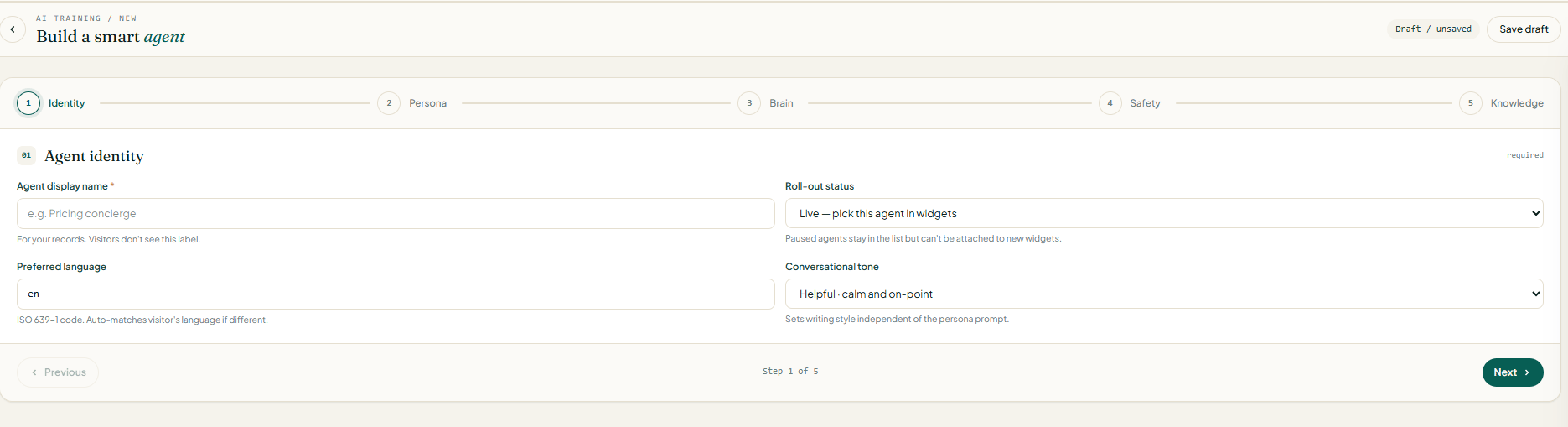 | Field | What to enter |
| ----------------------------------- | ------------------------------------------------------------------------------------------------------------------------- |
| **Agent display name** *(required)* | Internal label for your records (e.g. `Pricing concierge`). Visitors never see it. |
| **Roll-out status** | `Live` makes the agent selectable inside widgets. `Paused` keeps it in the list but hides it from new widget attachments. |
| **Preferred language** | ISO 639-1 code (e.g. `en`, `fr`, `sw`). Auto-matches the visitor's language if different. |
| **Conversational tone** | Preset writing style (e.g. `Helpful · calm and on-point`). Applied independently of the persona prompt in step 2. |
Click **Next** to continue.
Define the agent's voice and its very first message.
| Field | What to enter |
| ----------------------------------- | ------------------------------------------------------------------------------------------------------------------------- |
| **Agent display name** *(required)* | Internal label for your records (e.g. `Pricing concierge`). Visitors never see it. |
| **Roll-out status** | `Live` makes the agent selectable inside widgets. `Paused` keeps it in the list but hides it from new widget attachments. |
| **Preferred language** | ISO 639-1 code (e.g. `en`, `fr`, `sw`). Auto-matches the visitor's language if different. |
| **Conversational tone** | Preset writing style (e.g. `Helpful · calm and on-point`). Applied independently of the persona prompt in step 2. |
Click **Next** to continue.
Define the agent's voice and its very first message.
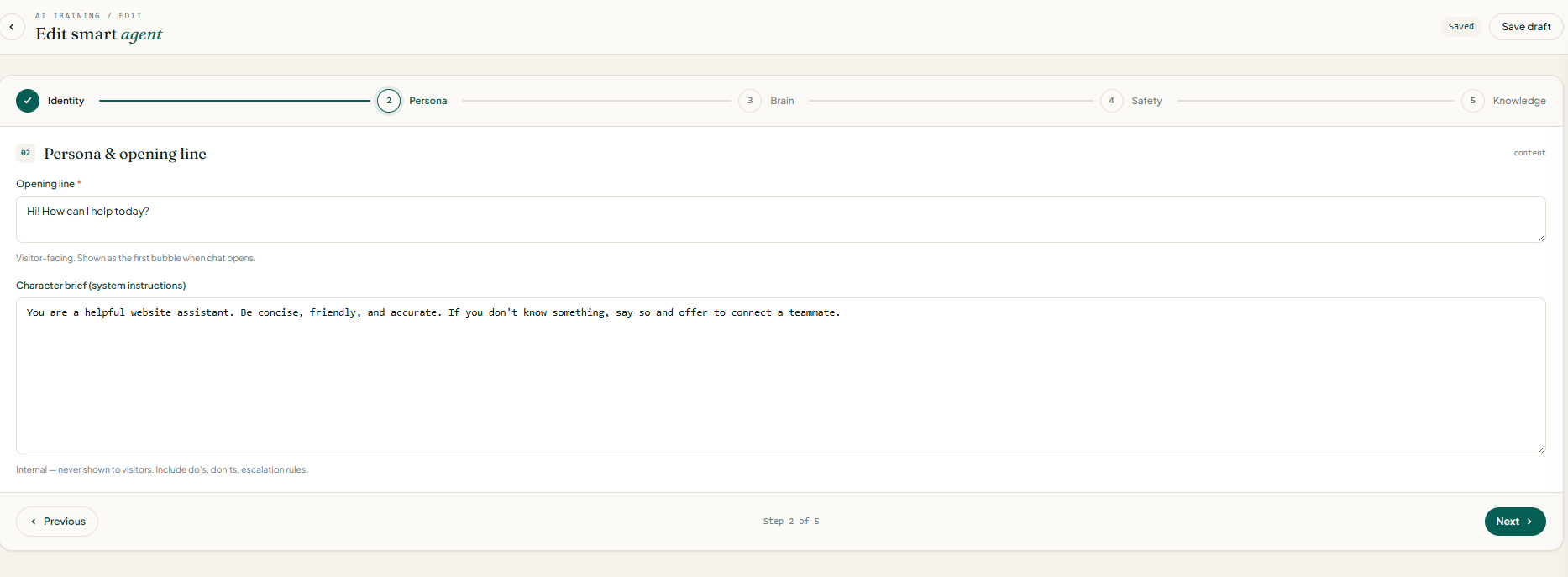 * **Opening line** *(required, visitor-facing)* — the first bubble shown when a chat opens. Keep it short and warm, e.g. `Hi! How can I help today?`.
* **Character brief (system instructions)** — internal prompt that shapes every reply. Never shown to visitors. Include:
* Do's and don'ts (topics to cover, topics to refuse)
* Escalation rules (when to hand off to a human)
* House style (formal / casual, emoji use, length)
A precise character brief is the single biggest lever on reply quality. Spell out edge cases explicitly — the model follows what you write, not what you meant.
Choose the LLM and tune how it writes.
* **Opening line** *(required, visitor-facing)* — the first bubble shown when a chat opens. Keep it short and warm, e.g. `Hi! How can I help today?`.
* **Character brief (system instructions)** — internal prompt that shapes every reply. Never shown to visitors. Include:
* Do's and don'ts (topics to cover, topics to refuse)
* Escalation rules (when to hand off to a human)
* House style (formal / casual, emoji use, length)
A precise character brief is the single biggest lever on reply quality. Spell out edge cases explicitly — the model follows what you write, not what you meant.
Choose the LLM and tune how it writes.
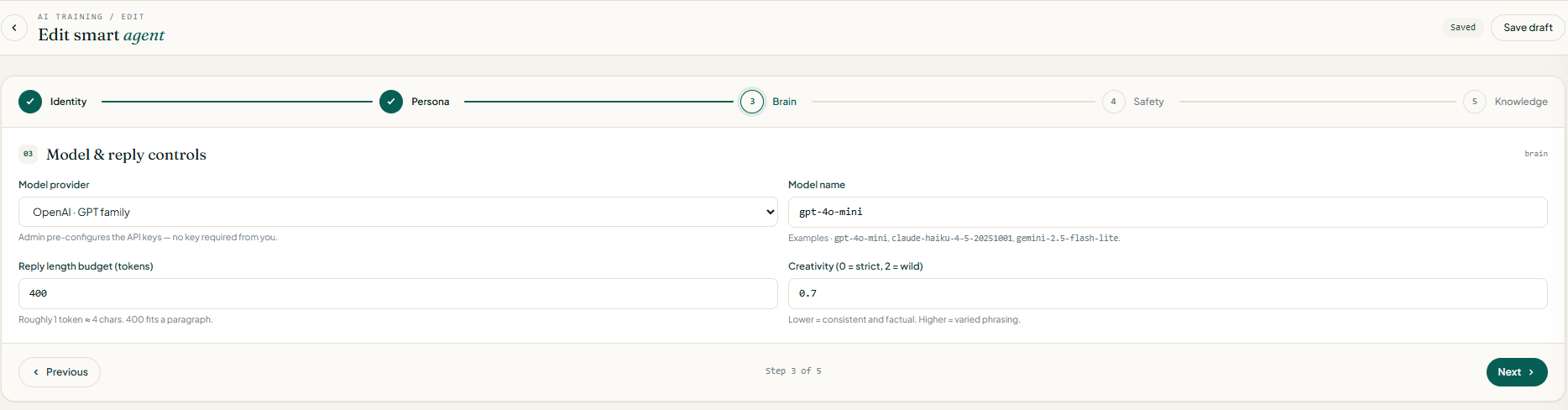 | Field | Notes |
| -------------------------------- | ------------------------------------------------------------------------------------------------------------------------------------------- |
| **Model provider** | Pick from OpenAI, Anthropic Claude, Google Gemini, Mistral, or ElevenLabs. Admin pre-configures the API keys — you don't need to paste one. |
| **Model name** | Exact model identifier — e.g. `gpt-4o-mini`, `claude-haiku-4-5-20251001`, `gemini-2.5-flash-lite`. |
| **Reply length budget (tokens)** | Hard ceiling per reply. Roughly 1 token ≈ 4 characters; `400` fits a full paragraph. |
| **Creativity** | `0` = strict and factual, `2` = wild and varied. `0.7` is a safe default for support. |
Cheaper models (Haiku, Flash-Lite, GPT-4o-mini) handle 80% of support traffic well. Reserve the flagship models for agents that need nuanced reasoning.
Cover what happens when the model fails or the visitor needs a person.
| Field | Notes |
| -------------------------------- | ------------------------------------------------------------------------------------------------------------------------------------------- |
| **Model provider** | Pick from OpenAI, Anthropic Claude, Google Gemini, Mistral, or ElevenLabs. Admin pre-configures the API keys — you don't need to paste one. |
| **Model name** | Exact model identifier — e.g. `gpt-4o-mini`, `claude-haiku-4-5-20251001`, `gemini-2.5-flash-lite`. |
| **Reply length budget (tokens)** | Hard ceiling per reply. Roughly 1 token ≈ 4 characters; `400` fits a full paragraph. |
| **Creativity** | `0` = strict and factual, `2` = wild and varied. `0.7` is a safe default for support. |
Cheaper models (Haiku, Flash-Lite, GPT-4o-mini) handle 80% of support traffic well. Reserve the flagship models for agents that need nuanced reasoning.
Cover what happens when the model fails or the visitor needs a person.
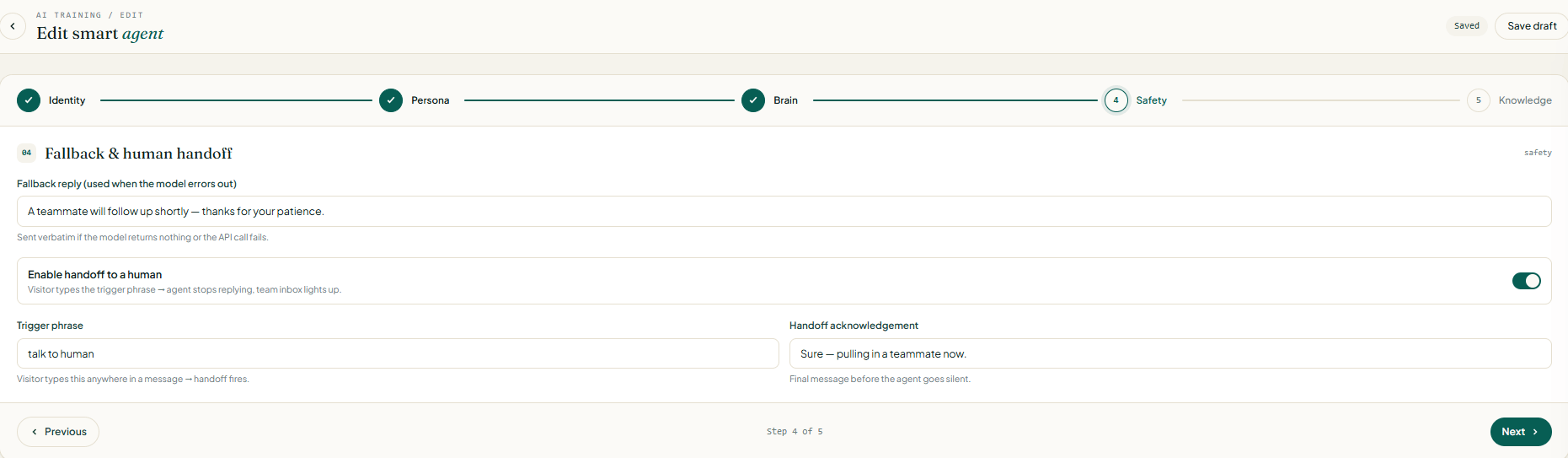 * **Fallback reply** — sent verbatim if the model returns nothing or the API call fails. Something reassuring like `A teammate will follow up shortly — thanks for your patience.` works well.
* **Enable handoff to a human** — toggle on to let visitors escape the bot.
* **Trigger phrase** — visitor types this anywhere in a message (e.g. `talk to human`) and the agent stops replying; the conversation lights up in your team inbox.
* **Handoff acknowledgement** — the final message the agent sends before going silent (e.g. `Sure — pulling in a teammate now.`).
Leave handoff enabled unless you have a very specific reason to trap visitors with the bot. A frustrated customer with no exit is a churn risk.
Ground the agent in your own content so it stops hallucinating.
* **Fallback reply** — sent verbatim if the model returns nothing or the API call fails. Something reassuring like `A teammate will follow up shortly — thanks for your patience.` works well.
* **Enable handoff to a human** — toggle on to let visitors escape the bot.
* **Trigger phrase** — visitor types this anywhere in a message (e.g. `talk to human`) and the agent stops replying; the conversation lights up in your team inbox.
* **Handoff acknowledgement** — the final message the agent sends before going silent (e.g. `Sure — pulling in a teammate now.`).
Leave handoff enabled unless you have a very specific reason to trap visitors with the bot. A frustrated customer with no exit is a churn risk.
Ground the agent in your own content so it stops hallucinating.
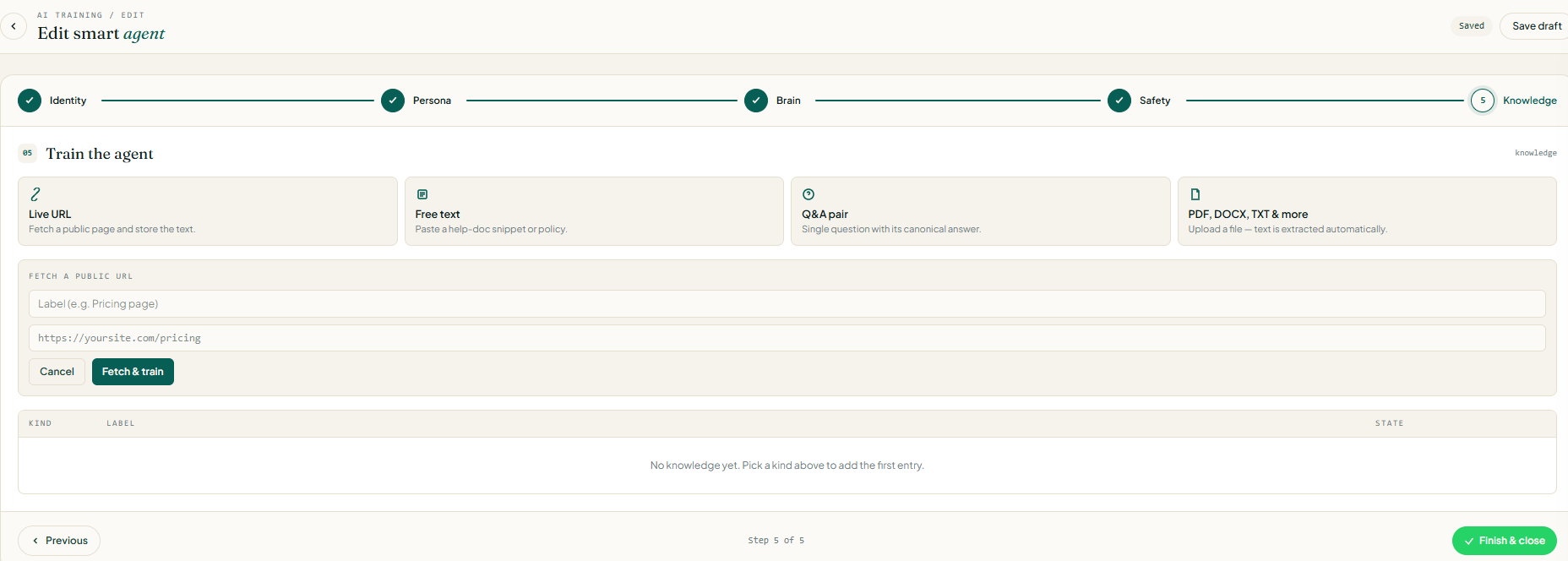 Pick one of four source kinds and add as many entries as you need:
| Kind | Use it for |
| ------------------------- | --------------------------------------------------------------------------------------------------------- |
| **Live URL** | Fetch a public page (pricing, FAQ, help centre) and store the text. Great for content that changes often. |
| **Free text** | Paste a help-doc snippet, policy paragraph, or product blurb directly. |
| **Q\&A pair** | A single question with its canonical answer. Best for high-precision replies on common questions. |
| **PDF, DOCX, TXT & more** | Upload a file — text is extracted automatically. |
For a **Live URL** entry: give it a **Label** (e.g. `Pricing page`), paste the URL, and click **Fetch & train**. The row appears in the knowledge table with its state (`Ready`, `Fetching`, `Failed`).
Click **Finish & close** to save the agent. It's now available to attach to widgets, auto-reply rules, and flows.
## Attaching an Agent
Navigate to **Messaging → Auto-Reply** and click **New Rule**.
Choose **All incoming messages** or a keyword trigger to scope when the agent activates.
Under **Reply with**, select **AI Agent** and choose the agent you configured.
Toggle the rule on. The agent will now handle all matched inbound messages automatically.
Navigate to **Flows** and open an existing flow or create a new one.
Drag the **AI Agent** node from the sidebar onto the canvas. Connect it to the preceding step.
Select your agent, set the maximum number of conversational turns before escalation, and choose what happens when the agent can't resolve the query.
Click **Publish**. The AI agent node is now live within the flow sequence.
## Escalation to a Human Agent
You can configure escalation triggers on any AI agent. When triggered, Soneka pauses the AI, marks the conversation as **Needs Human**, and notifies the assigned team in the **Inbox**.
Escalation can be triggered by:
* A customer typing "agent", "human", or "speak to someone" (configurable keywords)
* The agent reaching a maximum turn limit without resolving the query
* The agent's confidence score falling below your configured threshold
* A specific intent detected in the conversation (e.g. billing dispute, complaint)
The human agent receives the full conversation history, including all AI turns, so they can pick up without asking the customer to repeat themselves.
## AI Voicemail via WA Calling
When a customer calls your WhatsApp number and no agent is available, the AI voicemail agent answers the call using ElevenLabs voice synthesis. It greets the caller, explains that the team is unavailable, and invites them to leave a message or ask a question. The call is recorded, transcribed, and surfaced in the **Calling** inbox with an AI-generated summary. Your team can listen, read the transcript, and reply by chat or callback.
AI voicemail requires the **Pro** plan or above and must be enabled in **Settings → Calling → Voicemail**.
## Frequently Asked Questions
Yes. Once activated, an AI agent responds to incoming messages at any time of day without any manual intervention. You can optionally set business-hours rules so the agent acknowledges off-hours contacts differently.
Yes — that's exactly what the knowledge base is for. Upload PDFs, DOCX files, or link URLs, and the agent uses RAG to retrieve relevant content when answering. The underlying model itself is not fine-tuned (that remains the provider's model), but the agent is grounded entirely in your content.
AI Agents are available on the **Growth** plan and above. BYOK is an **Enterprise** feature. ElevenLabs voice is available on **Pro** and **Enterprise**.
You can review all AI conversations in the **Inbox** and flag incorrect responses. Flagged conversations are shown in **AI → Feedback**, where you can correct the answer and add it as a curated knowledge base entry to prevent the same error in future.
No. Soneka uses the providers' API endpoints under data-processing agreements that prohibit using your data for model training. Additionally, PII is redacted before any data leaves Soneka's infrastructure.
Yes. You can configure different agents with different providers and deploy them on different auto-reply rules or flow nodes. Only one provider is active per agent at any given time.
Pick one of four source kinds and add as many entries as you need:
| Kind | Use it for |
| ------------------------- | --------------------------------------------------------------------------------------------------------- |
| **Live URL** | Fetch a public page (pricing, FAQ, help centre) and store the text. Great for content that changes often. |
| **Free text** | Paste a help-doc snippet, policy paragraph, or product blurb directly. |
| **Q\&A pair** | A single question with its canonical answer. Best for high-precision replies on common questions. |
| **PDF, DOCX, TXT & more** | Upload a file — text is extracted automatically. |
For a **Live URL** entry: give it a **Label** (e.g. `Pricing page`), paste the URL, and click **Fetch & train**. The row appears in the knowledge table with its state (`Ready`, `Fetching`, `Failed`).
Click **Finish & close** to save the agent. It's now available to attach to widgets, auto-reply rules, and flows.
## Attaching an Agent
Navigate to **Messaging → Auto-Reply** and click **New Rule**.
Choose **All incoming messages** or a keyword trigger to scope when the agent activates.
Under **Reply with**, select **AI Agent** and choose the agent you configured.
Toggle the rule on. The agent will now handle all matched inbound messages automatically.
Navigate to **Flows** and open an existing flow or create a new one.
Drag the **AI Agent** node from the sidebar onto the canvas. Connect it to the preceding step.
Select your agent, set the maximum number of conversational turns before escalation, and choose what happens when the agent can't resolve the query.
Click **Publish**. The AI agent node is now live within the flow sequence.
## Escalation to a Human Agent
You can configure escalation triggers on any AI agent. When triggered, Soneka pauses the AI, marks the conversation as **Needs Human**, and notifies the assigned team in the **Inbox**.
Escalation can be triggered by:
* A customer typing "agent", "human", or "speak to someone" (configurable keywords)
* The agent reaching a maximum turn limit without resolving the query
* The agent's confidence score falling below your configured threshold
* A specific intent detected in the conversation (e.g. billing dispute, complaint)
The human agent receives the full conversation history, including all AI turns, so they can pick up without asking the customer to repeat themselves.
## AI Voicemail via WA Calling
When a customer calls your WhatsApp number and no agent is available, the AI voicemail agent answers the call using ElevenLabs voice synthesis. It greets the caller, explains that the team is unavailable, and invites them to leave a message or ask a question. The call is recorded, transcribed, and surfaced in the **Calling** inbox with an AI-generated summary. Your team can listen, read the transcript, and reply by chat or callback.
AI voicemail requires the **Pro** plan or above and must be enabled in **Settings → Calling → Voicemail**.
## Frequently Asked Questions
Yes. Once activated, an AI agent responds to incoming messages at any time of day without any manual intervention. You can optionally set business-hours rules so the agent acknowledges off-hours contacts differently.
Yes — that's exactly what the knowledge base is for. Upload PDFs, DOCX files, or link URLs, and the agent uses RAG to retrieve relevant content when answering. The underlying model itself is not fine-tuned (that remains the provider's model), but the agent is grounded entirely in your content.
AI Agents are available on the **Growth** plan and above. BYOK is an **Enterprise** feature. ElevenLabs voice is available on **Pro** and **Enterprise**.
You can review all AI conversations in the **Inbox** and flag incorrect responses. Flagged conversations are shown in **AI → Feedback**, where you can correct the answer and add it as a curated knowledge base entry to prevent the same error in future.
No. Soneka uses the providers' API endpoints under data-processing agreements that prohibit using your data for model training. Additionally, PII is redacted before any data leaves Soneka's infrastructure.
Yes. You can configure different agents with different providers and deploy them on different auto-reply rules or flow nodes. Only one provider is active per agent at any given time.