> ## Documentation Index
> Fetch the complete documentation index at: https://docs.soneka.africa/llms.txt
> Use this file to discover all available pages before exploring further.
# Campaigns: Bulk Outreach with A/B Testing, AI Copy & Refund-on-Fail
> Soneka's flexible bulk-outreach tool — text, template, media, buttons, or a flow — with CSV audiences, A/B testing, AI-generated copy, recurring schedules, and automatic wallet refunds when a send fails.
## Overview
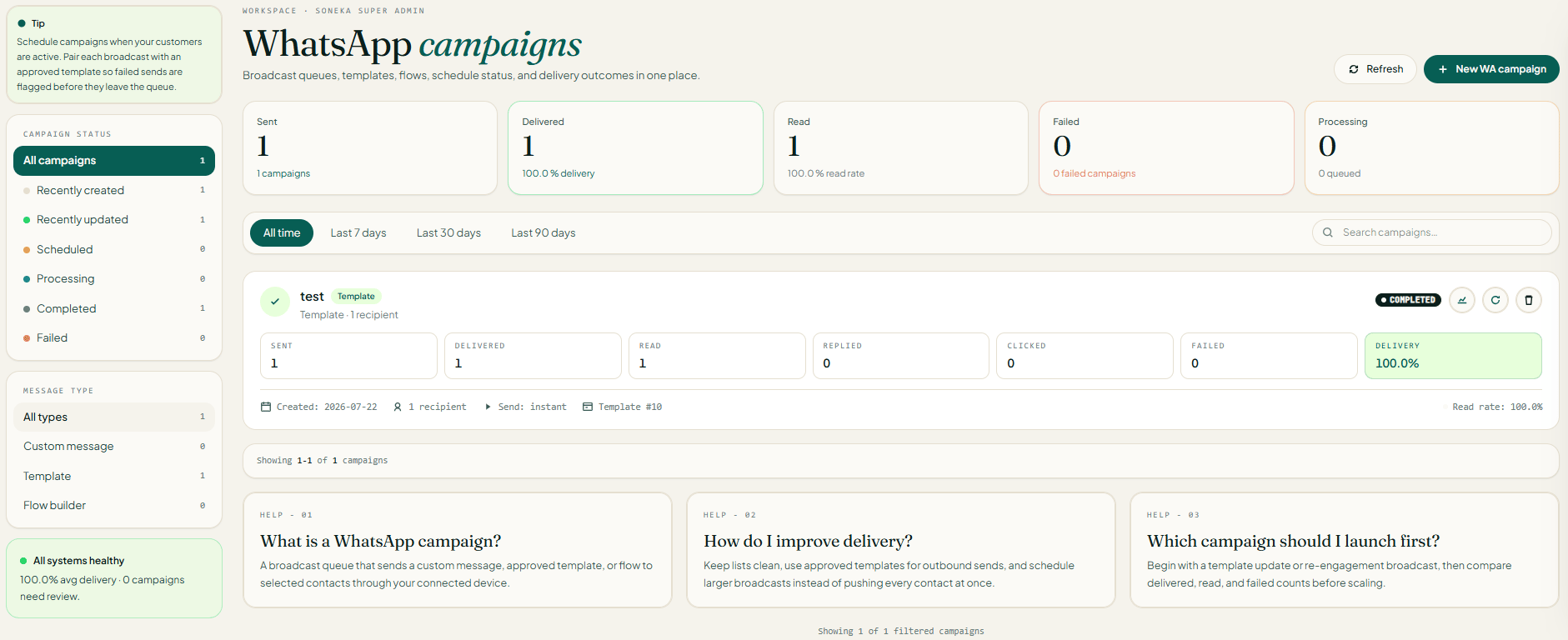 **Campaigns** are Soneka's bulk-outreach tool, reached from **WA Campaigns** in the top navigation. A single campaign delivers one message — free text, an approved template, an interactive message with buttons, a media message, or a whole automation *flow* — to an audience built from contacts, contact groups, typed-in numbers, an uploaded CSV, or any mix of these.
Every recipient is tracked individually the moment you launch, so the detail page shows who was queued, sent, delivered, read, replied, clicked, or failed — with each failure showing its own reason. Campaigns are tied to your workspace *and* its active engine, so teammates share one campaign history and switching engines never shows a wrong-engine sender list.
The campaign builder also includes **A/B testing**, per-recipient **link tracking**, an **AI copy generator**, and billing that **refunds the charge automatically** when a send fails.
**Access:** Campaigns require the **Admin** workspace role and a plan that includes the Campaign feature. Your plan also sets a limit on how many campaigns the workspace can create.
**Campaigns vs. [Broadcasts](/features/broadcasts):** Broadcasts are simpler and template-only — one approved template, sent to one audience, with retry-failed and multi-device splits. Campaigns are richer — any message type (including a flow), CSV audiences, A/B testing, AI copy, and recurring schedules. Reach for a broadcast when you just need a clean template send with detailed tracking; reach for a campaign when you need free-text, media, flows, or advanced audience building.
## Engines & Templates
A campaign always sends through the workspace's **active engine**. The template requirement differs by engine:
| Engine | Template requirement |
| ----------------------------- | ---------------------------------------------------------------------------------------------------------------------------------------------------- |
| **Unofficial API** | Any text body works. Templates are just convenient saved snippets — no Meta approval needed. |
| **Business API** (Meta Cloud) | Outreach must use a **Meta-approved** template. The create form rejects a template that isn't approved. |
| **Twilio** | Accepts a plain body like the Unofficial API; a template registered with Twilio sends as a proper Twilio template, otherwise it sends as plain text. |
**Campaigns** are Soneka's bulk-outreach tool, reached from **WA Campaigns** in the top navigation. A single campaign delivers one message — free text, an approved template, an interactive message with buttons, a media message, or a whole automation *flow* — to an audience built from contacts, contact groups, typed-in numbers, an uploaded CSV, or any mix of these.
Every recipient is tracked individually the moment you launch, so the detail page shows who was queued, sent, delivered, read, replied, clicked, or failed — with each failure showing its own reason. Campaigns are tied to your workspace *and* its active engine, so teammates share one campaign history and switching engines never shows a wrong-engine sender list.
The campaign builder also includes **A/B testing**, per-recipient **link tracking**, an **AI copy generator**, and billing that **refunds the charge automatically** when a send fails.
**Access:** Campaigns require the **Admin** workspace role and a plan that includes the Campaign feature. Your plan also sets a limit on how many campaigns the workspace can create.
**Campaigns vs. [Broadcasts](/features/broadcasts):** Broadcasts are simpler and template-only — one approved template, sent to one audience, with retry-failed and multi-device splits. Campaigns are richer — any message type (including a flow), CSV audiences, A/B testing, AI copy, and recurring schedules. Reach for a broadcast when you just need a clean template send with detailed tracking; reach for a campaign when you need free-text, media, flows, or advanced audience building.
## Engines & Templates
A campaign always sends through the workspace's **active engine**. The template requirement differs by engine:
| Engine | Template requirement |
| ----------------------------- | ---------------------------------------------------------------------------------------------------------------------------------------------------- |
| **Unofficial API** | Any text body works. Templates are just convenient saved snippets — no Meta approval needed. |
| **Business API** (Meta Cloud) | Outreach must use a **Meta-approved** template. The create form rejects a template that isn't approved. |
| **Twilio** | Accepts a plain body like the Unofficial API; a template registered with Twilio sends as a proper Twilio template, otherwise it sends as plain text. |
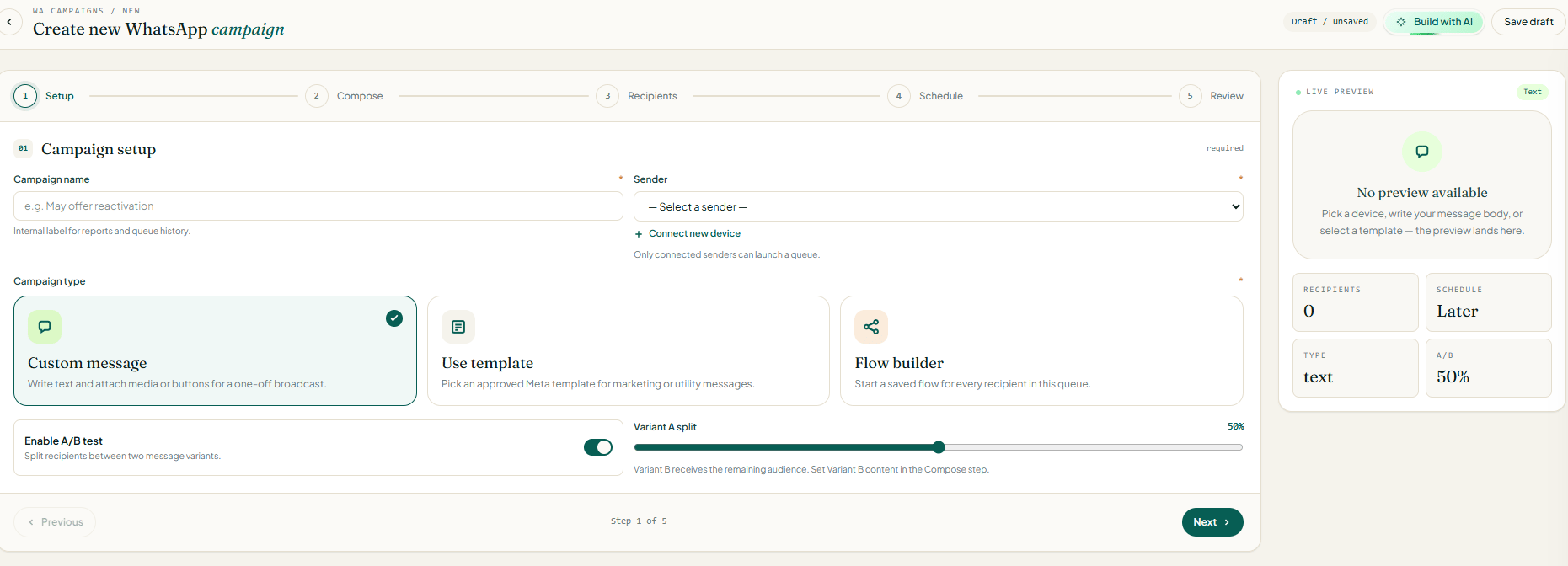 Only the Business API enforces the approved-template requirement. The number picker in step 1 also matches the active engine: Unofficial API workspaces see their paired phones, while Cloud API / Twilio workspaces see their provider numbers — so you can never pick a wrong-engine sender that would silently fail.
**Authentication (OTP) templates cannot be used in a campaign.** Each recipient needs a unique verifiable code that only your own system can create and check, so the form blocks any authentication template. Send those one at a time from the transactional template send instead.
## Message Types
Step 1 (Setup) sets the **campaign type**, which decides what the Compose step shows and how the outgoing message is built:
| Type | What it sends |
| ------------------ | ------------------------------------------------------------------------------------------------------------------------------------------------------------------------------------------- |
| **Custom message** | A free-text message — the body *is* the message, with an optional header, footer, buttons, and quick replies. |
| **Button** | An interactive message with tappable buttons and quick replies. |
| **Media** | A media message (image, video, or document) with a caption. |
| **Template** | An approved template — its body, header, footer, buttons, media header, or a **carousel**, sent exactly as approved. |
| **Flow** | Starts a fresh automation flow for each recipient — not a single message. The flow itself controls delays, branching, and follow-up sends. (The flow must be **active** in this workspace.) |
For approved **template** campaigns on the Business API, Soneka builds the full rich message (buttons, carousel cards, media headers, even authentication-code structure) and wraps links for click tracking. **Carousel** cards are supported: each card's title, body, footer, and link buttons are filled in and tracked individually.
## Personalization & AI Copy
Bodies, headers, footers, and button labels are personalized in two steps:
Placeholders that are the same for everyone — for example `{{promo_key}}`, `{{order_id}}`, or numbered placeholders like `{{1}}` — are filled in once for the whole campaign.
Then these placeholders are filled in for each recipient:
| Placeholder | Fills in with |
| -------------------------- | ----------------------- |
| `{{name}}` | Contact's display name |
| `{{first_name}}` | Contact's first name |
| `{{last_name}}` | Contact's last name |
| `{{mobile}}` / `{{phone}}` | Contact's mobile number |
| `{{email}}` | Contact's email |
If the message comes out empty for a recipient (a missing template, or all placeholders blank), that recipient is marked **failed** with "Empty message body" rather than sending a blank message.
### Build with AI
The **Build with AI** button drafts a complete campaign from a short brief:
Soneka lists the text AI models your admin has enabled (OpenAI, Anthropic, Google); voice-only providers aren't offered here.
Business name (required), product, goal, audience, offer, preferred call-to-action label and link, tone, and any notes.
Soneka generates a campaign name, a message body (with `*bold*` / `_italic_` formatting and an optional `{{name}}` placeholder), an optional footer, a primary button label and link, and up to three quick replies — all pasted straight into the builder for you to edit.
The generator follows the rules by design: it avoids spammy wording, all-caps shouting, and emojis, and the lengths are capped (body up to 1024 characters; footer, button, and quick-reply labels 25–60 characters) so it never produces copy the form would reject.
## Audience, CSV & Dedup
The Recipients step builds the send list from up to four sources, in any combination:
Pick individual contacts.
Pick groups, and Soneka pulls in each group's members for you.
Paste numbers into the box, one per line or separated by spaces, commas, or semicolons.
Upload a `.csv` or `.txt` file (up to 5 MB). Soneka detects a header row (looking for columns like name, phone, mobile, number, or contact) and reads the phone column, falling back to the first column.
Numbers from the box and the CSV are cleaned to digits only and must be at least 8 digits to count. Each number is **matched to an existing contact** and reused; if there's no match, Soneka **creates a contact automatically** named "Recipient · \" so reporting stays consistent. Finally, all four sources are merged and **de-duplicated** so each person appears exactly once.
**Tip:** Contacts already unsubscribed at the workspace level are flagged in the campaign's recipient analytics, and a reply containing a STOP or UNSUB keyword unsubscribes that contact workspace-wide, so future campaigns and broadcasts automatically skip the number.
## A/B Testing
On the Review step you can enable **A/B testing** to compare two templates against one audience:
Use the slider (10–90, default 50) to choose the share of the audience that receives variant A.
Soneka records which variant each recipient received, so the detail page can compare delivery and engagement between A and B.
## Scheduling
The Schedule step offers three send modes:
| Mode | Behaviour |
| ------------- | ----------------------------------------------------------------------------------------------------------------------------------------------------------------------------------------------------------------------------------------- |
| **Send now** | The campaign starts sending immediately and its status becomes *running*. |
| **Scheduled** | Saved with a date, time, and time zone; status stays *scheduled* until the chosen moment, then it sends automatically. |
| **Recurring** | A repeating campaign with a **Repeat** pattern (daily / weekly / monthly) and an optional **Repeat until** end date. After each run it sets itself up for the next time and returns to *scheduled*, stopping once it passes the end date. |
The time zone you pick defaults to your **workspace time zone**, so a campaign set for "9:00 AM Asia/Kolkata" fires at that local moment no matter where the server is. Recurring runs use that same local time, so the clock time stays the same across daylight-saving changes — "9 AM every week" stays 9 AM.
**How scheduled campaigns fire.** The background service that powers WhatsApp checks every 30 seconds for any campaign whose time has come and sends it — using the same path as **Send now**, with safeguards so it never sends twice. A scheduled campaign therefore goes out within about half a minute of its scheduled time, as long as the connection is up.
## Campaign & Recipient Statuses
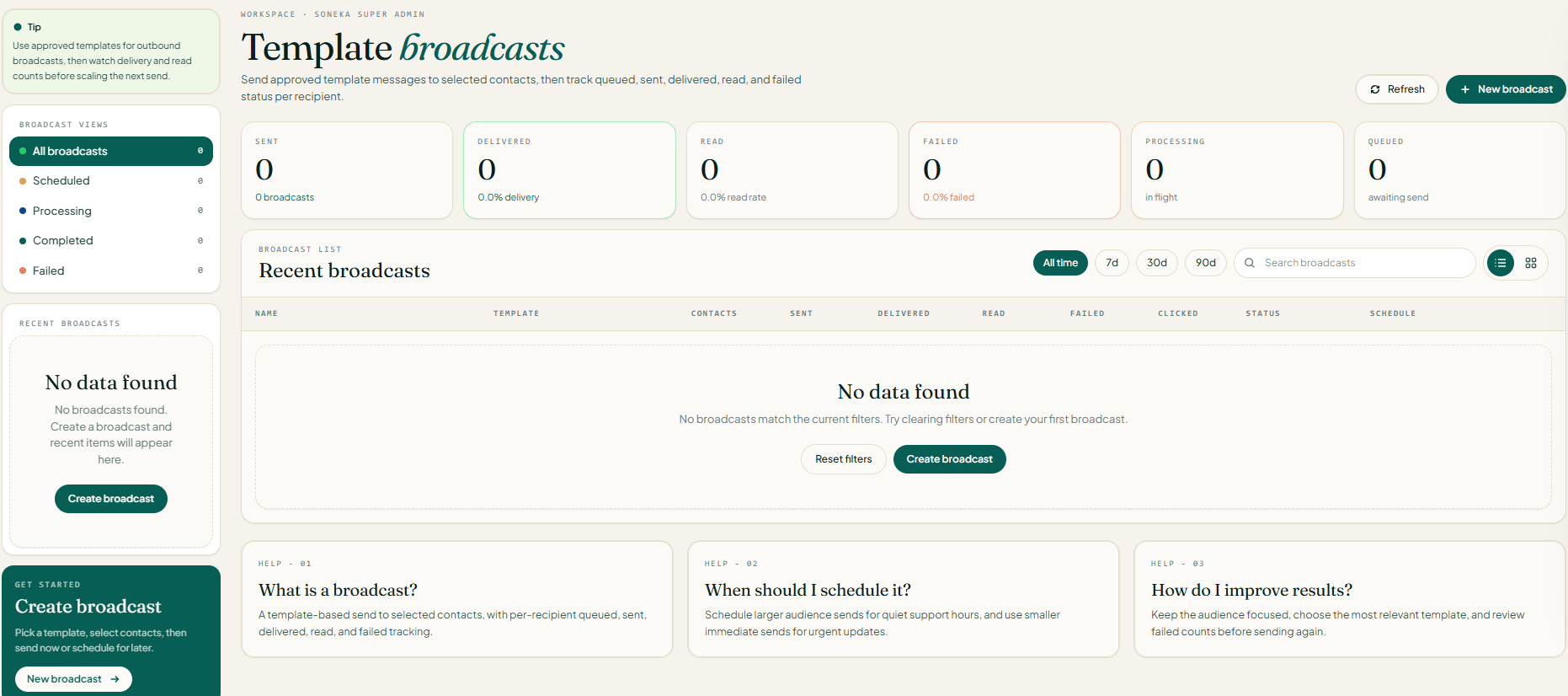
A campaign carries an overall status, while every recipient tracks its own delivery state. The detail page updates live (about every 15 seconds), so the tiles and the status pill update while a send is in progress.
Only the Business API enforces the approved-template requirement. The number picker in step 1 also matches the active engine: Unofficial API workspaces see their paired phones, while Cloud API / Twilio workspaces see their provider numbers — so you can never pick a wrong-engine sender that would silently fail.
**Authentication (OTP) templates cannot be used in a campaign.** Each recipient needs a unique verifiable code that only your own system can create and check, so the form blocks any authentication template. Send those one at a time from the transactional template send instead.
## Message Types
Step 1 (Setup) sets the **campaign type**, which decides what the Compose step shows and how the outgoing message is built:
| Type | What it sends |
| ------------------ | ------------------------------------------------------------------------------------------------------------------------------------------------------------------------------------------- |
| **Custom message** | A free-text message — the body *is* the message, with an optional header, footer, buttons, and quick replies. |
| **Button** | An interactive message with tappable buttons and quick replies. |
| **Media** | A media message (image, video, or document) with a caption. |
| **Template** | An approved template — its body, header, footer, buttons, media header, or a **carousel**, sent exactly as approved. |
| **Flow** | Starts a fresh automation flow for each recipient — not a single message. The flow itself controls delays, branching, and follow-up sends. (The flow must be **active** in this workspace.) |
For approved **template** campaigns on the Business API, Soneka builds the full rich message (buttons, carousel cards, media headers, even authentication-code structure) and wraps links for click tracking. **Carousel** cards are supported: each card's title, body, footer, and link buttons are filled in and tracked individually.
## Personalization & AI Copy
Bodies, headers, footers, and button labels are personalized in two steps:
Placeholders that are the same for everyone — for example `{{promo_key}}`, `{{order_id}}`, or numbered placeholders like `{{1}}` — are filled in once for the whole campaign.
Then these placeholders are filled in for each recipient:
| Placeholder | Fills in with |
| -------------------------- | ----------------------- |
| `{{name}}` | Contact's display name |
| `{{first_name}}` | Contact's first name |
| `{{last_name}}` | Contact's last name |
| `{{mobile}}` / `{{phone}}` | Contact's mobile number |
| `{{email}}` | Contact's email |
If the message comes out empty for a recipient (a missing template, or all placeholders blank), that recipient is marked **failed** with "Empty message body" rather than sending a blank message.
### Build with AI
The **Build with AI** button drafts a complete campaign from a short brief:
Soneka lists the text AI models your admin has enabled (OpenAI, Anthropic, Google); voice-only providers aren't offered here.
Business name (required), product, goal, audience, offer, preferred call-to-action label and link, tone, and any notes.
Soneka generates a campaign name, a message body (with `*bold*` / `_italic_` formatting and an optional `{{name}}` placeholder), an optional footer, a primary button label and link, and up to three quick replies — all pasted straight into the builder for you to edit.
The generator follows the rules by design: it avoids spammy wording, all-caps shouting, and emojis, and the lengths are capped (body up to 1024 characters; footer, button, and quick-reply labels 25–60 characters) so it never produces copy the form would reject.
## Audience, CSV & Dedup
The Recipients step builds the send list from up to four sources, in any combination:
Pick individual contacts.
Pick groups, and Soneka pulls in each group's members for you.
Paste numbers into the box, one per line or separated by spaces, commas, or semicolons.
Upload a `.csv` or `.txt` file (up to 5 MB). Soneka detects a header row (looking for columns like name, phone, mobile, number, or contact) and reads the phone column, falling back to the first column.
Numbers from the box and the CSV are cleaned to digits only and must be at least 8 digits to count. Each number is **matched to an existing contact** and reused; if there's no match, Soneka **creates a contact automatically** named "Recipient · \" so reporting stays consistent. Finally, all four sources are merged and **de-duplicated** so each person appears exactly once.
**Tip:** Contacts already unsubscribed at the workspace level are flagged in the campaign's recipient analytics, and a reply containing a STOP or UNSUB keyword unsubscribes that contact workspace-wide, so future campaigns and broadcasts automatically skip the number.
## A/B Testing
On the Review step you can enable **A/B testing** to compare two templates against one audience:
Use the slider (10–90, default 50) to choose the share of the audience that receives variant A.
Soneka records which variant each recipient received, so the detail page can compare delivery and engagement between A and B.
## Scheduling
The Schedule step offers three send modes:
| Mode | Behaviour |
| ------------- | ----------------------------------------------------------------------------------------------------------------------------------------------------------------------------------------------------------------------------------------- |
| **Send now** | The campaign starts sending immediately and its status becomes *running*. |
| **Scheduled** | Saved with a date, time, and time zone; status stays *scheduled* until the chosen moment, then it sends automatically. |
| **Recurring** | A repeating campaign with a **Repeat** pattern (daily / weekly / monthly) and an optional **Repeat until** end date. After each run it sets itself up for the next time and returns to *scheduled*, stopping once it passes the end date. |
The time zone you pick defaults to your **workspace time zone**, so a campaign set for "9:00 AM Asia/Kolkata" fires at that local moment no matter where the server is. Recurring runs use that same local time, so the clock time stays the same across daylight-saving changes — "9 AM every week" stays 9 AM.
**How scheduled campaigns fire.** The background service that powers WhatsApp checks every 30 seconds for any campaign whose time has come and sends it — using the same path as **Send now**, with safeguards so it never sends twice. A scheduled campaign therefore goes out within about half a minute of its scheduled time, as long as the connection is up.
## Campaign & Recipient Statuses
A campaign carries an overall status, while every recipient tracks its own delivery state. The detail page updates live (about every 15 seconds), so the tiles and the status pill update while a send is in progress.
 ### Campaign status
| Status | Meaning |
| ------------- | ------------------------------------------------------------------------------------------------------------------------------------------------ |
| **scheduled** | Saved for a future date/time (or recurring) and waiting to fire. |
| **running** | Currently dispatching messages to recipients. |
| **completed** | Every recipient has been attempted; the send has finished. |
| **cancelled** | Stopped by you (via Cancel); can be restarted with Resume. |
| **failed** | The campaign couldn't run — e.g. a flow campaign whose flow is inactive or missing, no connected number, or the sending service was unreachable. |
### Per-recipient status
| Status | Meaning & trigger |
| ---------------- | -------------------------------------------------------------------------------------------- |
| **queued** | Created at launch, waiting its turn to be sent. |
| **sent** | Accepted by WhatsApp. |
| **delivered** | WhatsApp confirmed delivery. |
| **read** | The recipient opened the message (when read receipts are available). |
| **failed** | The send didn't succeed; the reason is shown and the wallet charge is refunded (see below). |
| **unsubscribed** | The recipient replied with a STOP or UNSUB keyword; the contact is opted out workspace-wide. |
Common failure reasons include "No mobile number on contact", "Out of credits", "Empty message body", a Meta/provider error message, or (for flow campaigns) "Sending service unreachable". Late or out-of-order updates only ever move a recipient *forward* (queued → sent → delivered → read), never backward. The detail tiles add **Delivered**, **Read**, **Replies**, and **Clicks** as those signals arrive, and the headline counts are recalculated on every update so repeated reports never double-count.
## Wallet Charge & Refund-on-Fail
Campaign sends are billed against your **wallet**, one credit per recipient. The accounting is built to never overcharge:
Before each send, Soneka checks the wallet. If it can't cover the message, the recipient is marked **failed** with "Out of credits" and no charge is taken.
The credit is charged just before the message is sent.
If WhatsApp accepts the message, the recipient is marked **sent**.
If the send fails for any reason, the recipient is marked **failed** and the charge is **refunded automatically**, with the failure reason attached.
On the Business API, if a template send fails, Soneka refunds and marks it failed rather than quietly re-sending it as plain text — which would both double-charge and send a worse message.
## Send, Pause, Resume, Cancel & Retry
From the campaigns list and the detail page you can act on a campaign throughout its life:
| Action | Effect |
| ------------ | ------------------------------------------------------------------------------------------------------------------- |
| **Send now** | Fires a scheduled campaign immediately — sets the status to *running* and sends to the queued recipients now. |
| **Cancel** | Stops a scheduled or running campaign (status becomes *cancelled*). |
| **Resume** | Sets a cancelled campaign back to *running*. |
| **Edit** | Allowed only while the campaign is a *draft*, *paused*, or *scheduled*; finished campaigns can no longer be edited. |
| **Delete** | Removes the campaign and all its recipient records. Bulk delete is available from the list. |
To recover from failures, fix the cause first (reconnect the number, top up credits, correct a media link), then re-run the campaign. Each failed recipient shows its own error, and the **retry backlog** tile on the list page shows the total number of failed recipients across the workspace so you can spot a systemic problem at a glance.
**Tip:** The list filters (status, message type, date range) and live search update without a full page reload. Sidebar counts always reflect the whole workspace, not the current filter.
## Ban-Safety & Pacing
Sending at scale on WhatsApp carries a real risk of a number being rate-limited or banned — especially on the Unofficial API. Soneka paces every bulk send using safety controls your admin sets under **Admin → Settings → System Message → Sender pacing**:
| Control | Default | Effect |
| -------------------------- | ------------------- | --------------------------------------------------------------------------------------------------------------------- |
| Message gap | 3 seconds | Delay between one message and the next, varied randomly by ±20% so it looks human. |
| Batch size | 50 recipients | How many messages go out before a pause (when batching is on). |
| Batch gap | 5 minutes | Cooldown between batches, also varied randomly by ±20%. |
| Enable batches | off | Master switch for batch pausing. |
| Daily cap (Unofficial API) | 4000 / day / number | Maximum messages a single number can send per day (resets daily). Sending from that number stops once the cap is hit. |
Soneka also guards against sending into a dropped Unofficial API connection: if the connection drops mid-run, the job is paused (instead of marking every remaining recipient as failed) and the paused state is shown in the dashboard.
**Protect your number.** Only message people who opted in. Warm up new numbers with small audiences before large blasts, keep copy personalized and relevant, stay well under the daily cap, and prefer approved templates and the official Business API for cold outreach. Sending unsolicited bulk messages, reusing one message to thousands of strangers, or turning off pacing is the fastest way to get a WhatsApp number banned. On the Business API, mind template quality too: Soneka refuses to launch a campaign on a template Meta has paused or whose quality score is below your minimum — pushing volume through a struggling template makes it worse and risks a block, so wait for the score to recover instead of forcing the send.
### Campaign status
| Status | Meaning |
| ------------- | ------------------------------------------------------------------------------------------------------------------------------------------------ |
| **scheduled** | Saved for a future date/time (or recurring) and waiting to fire. |
| **running** | Currently dispatching messages to recipients. |
| **completed** | Every recipient has been attempted; the send has finished. |
| **cancelled** | Stopped by you (via Cancel); can be restarted with Resume. |
| **failed** | The campaign couldn't run — e.g. a flow campaign whose flow is inactive or missing, no connected number, or the sending service was unreachable. |
### Per-recipient status
| Status | Meaning & trigger |
| ---------------- | -------------------------------------------------------------------------------------------- |
| **queued** | Created at launch, waiting its turn to be sent. |
| **sent** | Accepted by WhatsApp. |
| **delivered** | WhatsApp confirmed delivery. |
| **read** | The recipient opened the message (when read receipts are available). |
| **failed** | The send didn't succeed; the reason is shown and the wallet charge is refunded (see below). |
| **unsubscribed** | The recipient replied with a STOP or UNSUB keyword; the contact is opted out workspace-wide. |
Common failure reasons include "No mobile number on contact", "Out of credits", "Empty message body", a Meta/provider error message, or (for flow campaigns) "Sending service unreachable". Late or out-of-order updates only ever move a recipient *forward* (queued → sent → delivered → read), never backward. The detail tiles add **Delivered**, **Read**, **Replies**, and **Clicks** as those signals arrive, and the headline counts are recalculated on every update so repeated reports never double-count.
## Wallet Charge & Refund-on-Fail
Campaign sends are billed against your **wallet**, one credit per recipient. The accounting is built to never overcharge:
Before each send, Soneka checks the wallet. If it can't cover the message, the recipient is marked **failed** with "Out of credits" and no charge is taken.
The credit is charged just before the message is sent.
If WhatsApp accepts the message, the recipient is marked **sent**.
If the send fails for any reason, the recipient is marked **failed** and the charge is **refunded automatically**, with the failure reason attached.
On the Business API, if a template send fails, Soneka refunds and marks it failed rather than quietly re-sending it as plain text — which would both double-charge and send a worse message.
## Send, Pause, Resume, Cancel & Retry
From the campaigns list and the detail page you can act on a campaign throughout its life:
| Action | Effect |
| ------------ | ------------------------------------------------------------------------------------------------------------------- |
| **Send now** | Fires a scheduled campaign immediately — sets the status to *running* and sends to the queued recipients now. |
| **Cancel** | Stops a scheduled or running campaign (status becomes *cancelled*). |
| **Resume** | Sets a cancelled campaign back to *running*. |
| **Edit** | Allowed only while the campaign is a *draft*, *paused*, or *scheduled*; finished campaigns can no longer be edited. |
| **Delete** | Removes the campaign and all its recipient records. Bulk delete is available from the list. |
To recover from failures, fix the cause first (reconnect the number, top up credits, correct a media link), then re-run the campaign. Each failed recipient shows its own error, and the **retry backlog** tile on the list page shows the total number of failed recipients across the workspace so you can spot a systemic problem at a glance.
**Tip:** The list filters (status, message type, date range) and live search update without a full page reload. Sidebar counts always reflect the whole workspace, not the current filter.
## Ban-Safety & Pacing
Sending at scale on WhatsApp carries a real risk of a number being rate-limited or banned — especially on the Unofficial API. Soneka paces every bulk send using safety controls your admin sets under **Admin → Settings → System Message → Sender pacing**:
| Control | Default | Effect |
| -------------------------- | ------------------- | --------------------------------------------------------------------------------------------------------------------- |
| Message gap | 3 seconds | Delay between one message and the next, varied randomly by ±20% so it looks human. |
| Batch size | 50 recipients | How many messages go out before a pause (when batching is on). |
| Batch gap | 5 minutes | Cooldown between batches, also varied randomly by ±20%. |
| Enable batches | off | Master switch for batch pausing. |
| Daily cap (Unofficial API) | 4000 / day / number | Maximum messages a single number can send per day (resets daily). Sending from that number stops once the cap is hit. |
Soneka also guards against sending into a dropped Unofficial API connection: if the connection drops mid-run, the job is paused (instead of marking every remaining recipient as failed) and the paused state is shown in the dashboard.
**Protect your number.** Only message people who opted in. Warm up new numbers with small audiences before large blasts, keep copy personalized and relevant, stay well under the daily cap, and prefer approved templates and the official Business API for cold outreach. Sending unsolicited bulk messages, reusing one message to thousands of strangers, or turning off pacing is the fastest way to get a WhatsApp number banned. On the Business API, mind template quality too: Soneka refuses to launch a campaign on a template Meta has paused or whose quality score is below your minimum — pushing volume through a struggling template makes it worse and risks a block, so wait for the score to recover instead of forcing the send.