> ## Documentation Index
> Fetch the complete documentation index at: https://docs.soneka.africa/llms.txt
> Use this file to discover all available pages before exploring further.
# WhatsApp Templates: Build & Submit Approved Messages
> Create, validate, and submit WhatsApp message templates in Soneka. Choose from 71 starters, preview live, and get Meta approval in a median of 18 minutes.
WhatsApp requires pre-approved message templates for any conversation you initiate with a customer — or any message sent more than 24 hours after the customer's last reply. Templates give Meta confidence that businesses are sending relevant, non-spammy content, and they protect your customers from unwanted messages. Soneka's template builder makes the entire process — from blank slate to Meta approval — as fast and painless as possible, with a live preview, AI-assisted copy generation, and an automated lint check that catches policy violations before you ever click Submit.
## Template Types
Soneka supports all three WhatsApp template categories. The right type depends on what you're trying to send.
Used for **marketing** (promotions, offers, re-engagement) and **utility** (order confirmations, shipping updates, appointment reminders). Supports text, images, video, and document headers.
A horizontally scrollable card format. Each card can carry its own image, body text, and up to two buttons — ideal for showcasing product collections or multi-step offers.
Delivers one-time passcodes using Meta's official OTP format. Includes a built-in copy-code button and automatic 5-minute expiry messaging. No custom body text permitted.
## Start from a Pre-Built Starter
Building from scratch isn't always necessary. Soneka ships **71 pre-built template starters** organised across 9 industries — ecommerce, healthcare, education, real estate, finance, hospitality, logistics, SaaS, and retail.
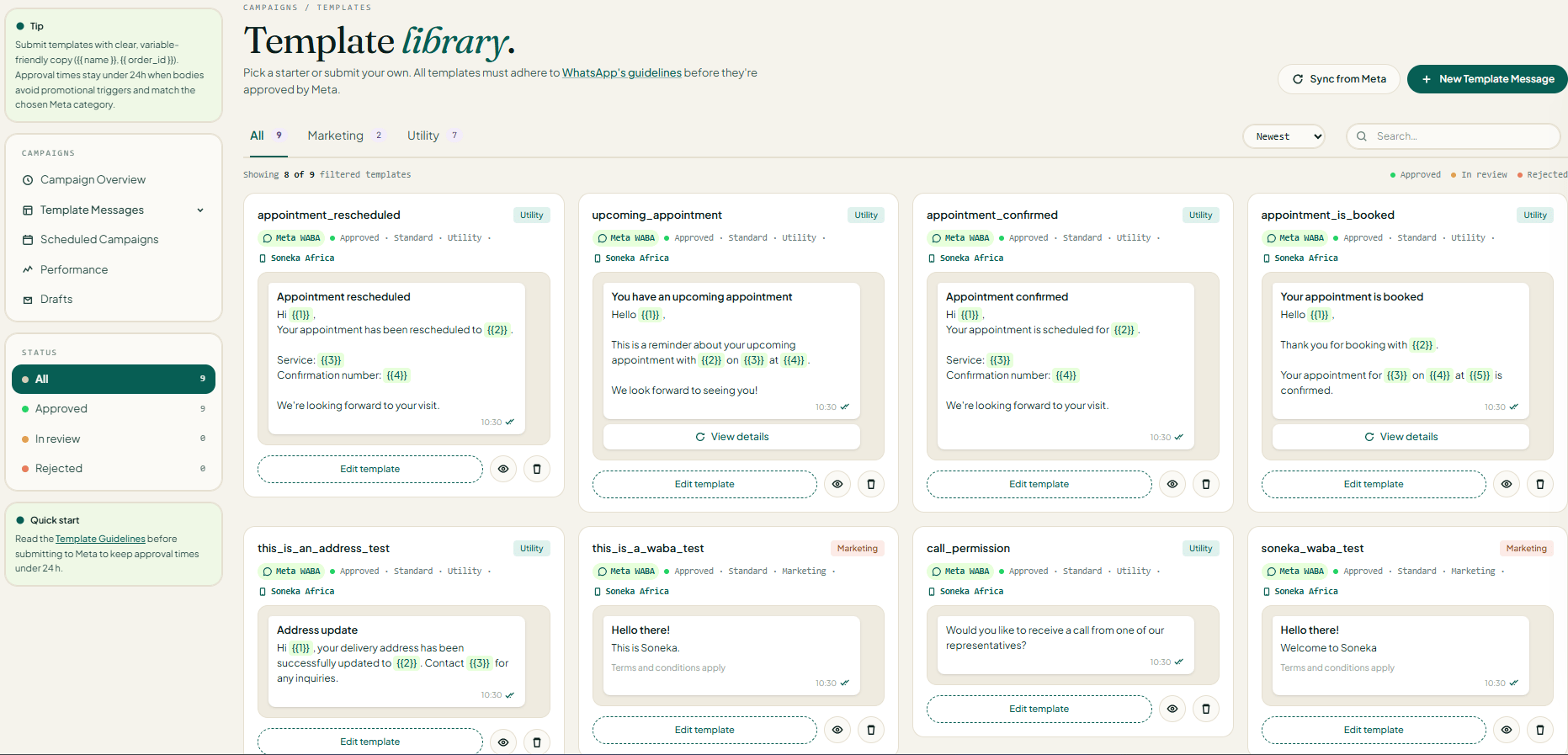 Navigate to **Messaging → Templates** and click **New Template**. Select **Browse Starters** to open the library.
Use the industry pills and the Marketing / Utility / Auth toggle to narrow the list. Each card shows a preview of the template body and its typical approval rate.
Click **Use This Template** on any starter. Soneka duplicates it into your workspace and opens the editor — the original stays in the library for future use.
## Generate Copy with AI
If no starter fits perfectly, let Soneka's **Build with AI** assistant draft a high-converting WhatsApp template from a short brief. Instead of a free-form prompt, you fill in a structured form so the model has the exact context it needs — business, industry, occasion, purpose, action, tone, and language — and returns a submission-ready draft in seconds.
Navigate to **Messaging → Templates** and click **New Template**. Select **Browse Starters** to open the library.
Use the industry pills and the Marketing / Utility / Auth toggle to narrow the list. Each card shows a preview of the template body and its typical approval rate.
Click **Use This Template** on any starter. Soneka duplicates it into your workspace and opens the editor — the original stays in the library for future use.
## Generate Copy with AI
If no starter fits perfectly, let Soneka's **Build with AI** assistant draft a high-converting WhatsApp template from a short brief. Instead of a free-form prompt, you fill in a structured form so the model has the exact context it needs — business, industry, occasion, purpose, action, tone, and language — and returns a submission-ready draft in seconds.
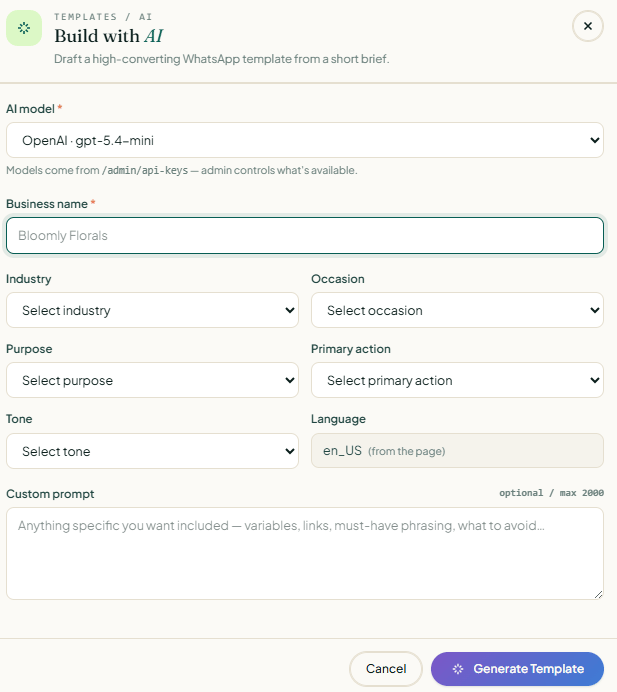 In the template editor, click **Generate with AI** above the body field. The **Build with AI** dialog opens with the brief form.
Choose from the models your admin has enabled (for example, `OpenAI · gpt-5.4-mini`). Available models are configured in **Admin → API Keys** — if the list looks short, ask your workspace admin to enable more.
Type the brand or store name exactly as it should appear in the copy (e.g. *Bloomly Florals*). This is used verbatim in the body and header, so match the casing and spelling you use elsewhere.
Pick the closest category (ecommerce, healthcare, education, real estate, finance, hospitality, logistics, SaaS, retail, etc.). Industry drives vocabulary, examples, and the compliance guardrails the model applies.
Tell the model *when* this message goes out — for example *Cart abandonment*, *Order confirmation*, *Appointment reminder*, *Seasonal promo*, or *Welcome*. The occasion controls timing cues and urgency in the copy.
Choose the category the template will be submitted under — **Marketing**, **Utility**, or **Authentication**. Soneka aligns the draft with Meta's rules for that category (e.g. no promotional language in Utility, no custom body in Auth).
What should the recipient do? Common options: *Complete purchase*, *Book appointment*, *Reply YES*, *Visit link*, *Show code in store*, *Call us*. This becomes the call-to-action and drives the suggested button.
Match your brand voice — Friendly, Professional, Playful, Urgent, Formal, Empathetic. Tone affects word choice, emoji use, and sentence rhythm.
Language is pre-filled from the template you're editing (for example `en_US (from the page)`). Change it only if you want the draft in a different locale — it must match the language code you submit to Meta.
Use the free-text field (up to 2,000 characters) for anything the structured fields can't capture — required variables like `\{{1}}`, links to include, must-have phrasing, legal disclaimers, or things to avoid. Example: *"Include `\{{1}}` for first name and `\{{2}}` for cart total. Must mention free shipping over R500. Do not use the word 'guaranteed'."*
Click **Generate Template**. Soneka drafts a suggested header, body, footer, and buttons that match your brief and drops them into the editor. Click **Cancel** to close without generating.
Every generated field is fully editable — accept the whole draft or cherry-pick sections. Set sample values for any variables, then let the built-in [lint check](#pre-validation-lint-check) confirm it's ready for Meta submission.
The more specific each field, the better the draft. A brief like *Bloomly Florals · Retail · Mother's Day · Marketing · Complete purchase · Playful · en\_US* produces a far tighter first draft than a vague one-liner in the custom prompt alone.
AI drafts are a starting point, not a shortcut around Meta's rules. Always review the copy, confirm variables and sample values, and run the lint check before submitting — especially for **Utility** and **Authentication** templates where promotional language can trigger a reject.
## Build a Standard Template
The Standard builder is the most common path — text, media, and buttons for marketing and utility templates. It's split into numbered sections so every Meta requirement has a clear home.
In the template editor, click **Generate with AI** above the body field. The **Build with AI** dialog opens with the brief form.
Choose from the models your admin has enabled (for example, `OpenAI · gpt-5.4-mini`). Available models are configured in **Admin → API Keys** — if the list looks short, ask your workspace admin to enable more.
Type the brand or store name exactly as it should appear in the copy (e.g. *Bloomly Florals*). This is used verbatim in the body and header, so match the casing and spelling you use elsewhere.
Pick the closest category (ecommerce, healthcare, education, real estate, finance, hospitality, logistics, SaaS, retail, etc.). Industry drives vocabulary, examples, and the compliance guardrails the model applies.
Tell the model *when* this message goes out — for example *Cart abandonment*, *Order confirmation*, *Appointment reminder*, *Seasonal promo*, or *Welcome*. The occasion controls timing cues and urgency in the copy.
Choose the category the template will be submitted under — **Marketing**, **Utility**, or **Authentication**. Soneka aligns the draft with Meta's rules for that category (e.g. no promotional language in Utility, no custom body in Auth).
What should the recipient do? Common options: *Complete purchase*, *Book appointment*, *Reply YES*, *Visit link*, *Show code in store*, *Call us*. This becomes the call-to-action and drives the suggested button.
Match your brand voice — Friendly, Professional, Playful, Urgent, Formal, Empathetic. Tone affects word choice, emoji use, and sentence rhythm.
Language is pre-filled from the template you're editing (for example `en_US (from the page)`). Change it only if you want the draft in a different locale — it must match the language code you submit to Meta.
Use the free-text field (up to 2,000 characters) for anything the structured fields can't capture — required variables like `\{{1}}`, links to include, must-have phrasing, legal disclaimers, or things to avoid. Example: *"Include `\{{1}}` for first name and `\{{2}}` for cart total. Must mention free shipping over R500. Do not use the word 'guaranteed'."*
Click **Generate Template**. Soneka drafts a suggested header, body, footer, and buttons that match your brief and drops them into the editor. Click **Cancel** to close without generating.
Every generated field is fully editable — accept the whole draft or cherry-pick sections. Set sample values for any variables, then let the built-in [lint check](#pre-validation-lint-check) confirm it's ready for Meta submission.
The more specific each field, the better the draft. A brief like *Bloomly Florals · Retail · Mother's Day · Marketing · Complete purchase · Playful · en\_US* produces a far tighter first draft than a vague one-liner in the custom prompt alone.
AI drafts are a starting point, not a shortcut around Meta's rules. Always review the copy, confirm variables and sample values, and run the lint check before submitting — especially for **Utility** and **Authentication** templates where promotional language can trigger a reject.
## Build a Standard Template
The Standard builder is the most common path — text, media, and buttons for marketing and utility templates. It's split into numbered sections so every Meta requirement has a clear home.
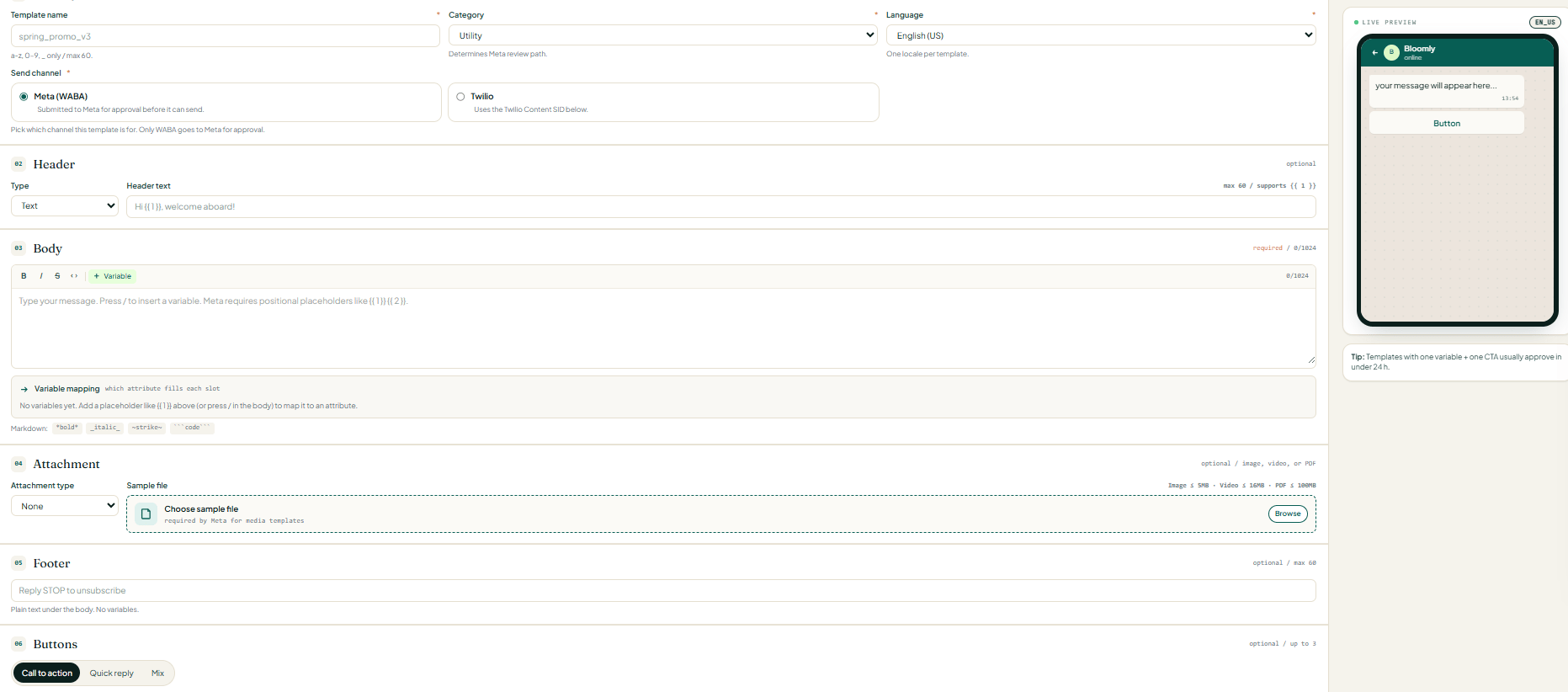 Set the four required fields at the top:
* **Template name** — lowercase `a-z`, digits `0-9`, and underscores only. Max 60 chars (e.g. `spring_promo_v3`). This is the immutable slug Meta uses to reference the template.
* **Category** — Marketing, Utility, or Authentication. This determines Meta's review path and which content rules apply.
* **Language** — one locale per template (e.g. `English (US)`). To offer multiple languages, create one template per locale under the same name — see [Multi-Language Templates](#multi-language-templates).
* **Send channel** — **Meta (WABA)** (submitted to Meta for approval) or **Twilio** (uses a Twilio Content SID instead). Only WABA goes to Meta for approval.
Pick a header **Type**:
* **Text** — up to 60 characters, supports one variable like `\{{1}}` (e.g. `Hi \{{1}}, welcome aboard!`).
* **Image / Video / Document** — upload a sample file in the Attachment section below; the header renders that media type at the top of the message.
* **None** — omit the header entirely.
The main message, up to 1,024 characters. Use the toolbar for **bold**, *italic*, ~~strike~~, and `code`, or click **+ Variable** (or press `/`) to insert positional placeholders like `\{{1}}` `\{{2}}`.
Below the body, the **Variable mapping** row lets you point each placeholder at a contact attribute (first name, order number, cart total, etc.) so it fills in automatically at send time.
If your Header type is Image, Video, or Document, upload a **sample file** here — Meta requires a real media sample to review a media template. Limits: image ≤ 5 MB, video ≤ 16 MB, PDF ≤ 100 MB. Leave **Attachment type** on `None` for text-only templates.
A single plain-text line under the body (max 60 chars, no variables). Common uses: `Reply STOP to unsubscribe`, business hours, or a legal disclaimer. Required opt-out language for Marketing templates lives here.
Choose the button style:
* **Call to action** — up to two: a URL button (with an optional variable in the URL) and/or a phone button.
* **Quick reply** — up to three tap-to-reply buttons that send a pre-set text response back to Soneka (great for routing to a flow).
* **Mix** — combine one CTA with quick replies, up to three total.
Use **Save draft** to keep working, or **Submit for review** to send it to Meta once the lint check is clean. The live preview on the right shows exactly how the message renders on a phone.
Templates with **one variable + one CTA** consistently approve fastest — often under 24 hours. Extra variables, long copy, and multiple buttons all lengthen review time and raise reject risk.
## Build a Carousel Template
Carousel templates let you send up to **10 horizontally scrollable cards** in a single message — each with its own image, title, body, and button. They're ideal for product collections, multi-property listings, tiered offers, or a "pick one of these" experience.
Set the four required fields at the top:
* **Template name** — lowercase `a-z`, digits `0-9`, and underscores only. Max 60 chars (e.g. `spring_promo_v3`). This is the immutable slug Meta uses to reference the template.
* **Category** — Marketing, Utility, or Authentication. This determines Meta's review path and which content rules apply.
* **Language** — one locale per template (e.g. `English (US)`). To offer multiple languages, create one template per locale under the same name — see [Multi-Language Templates](#multi-language-templates).
* **Send channel** — **Meta (WABA)** (submitted to Meta for approval) or **Twilio** (uses a Twilio Content SID instead). Only WABA goes to Meta for approval.
Pick a header **Type**:
* **Text** — up to 60 characters, supports one variable like `\{{1}}` (e.g. `Hi \{{1}}, welcome aboard!`).
* **Image / Video / Document** — upload a sample file in the Attachment section below; the header renders that media type at the top of the message.
* **None** — omit the header entirely.
The main message, up to 1,024 characters. Use the toolbar for **bold**, *italic*, ~~strike~~, and `code`, or click **+ Variable** (or press `/`) to insert positional placeholders like `\{{1}}` `\{{2}}`.
Below the body, the **Variable mapping** row lets you point each placeholder at a contact attribute (first name, order number, cart total, etc.) so it fills in automatically at send time.
If your Header type is Image, Video, or Document, upload a **sample file** here — Meta requires a real media sample to review a media template. Limits: image ≤ 5 MB, video ≤ 16 MB, PDF ≤ 100 MB. Leave **Attachment type** on `None` for text-only templates.
A single plain-text line under the body (max 60 chars, no variables). Common uses: `Reply STOP to unsubscribe`, business hours, or a legal disclaimer. Required opt-out language for Marketing templates lives here.
Choose the button style:
* **Call to action** — up to two: a URL button (with an optional variable in the URL) and/or a phone button.
* **Quick reply** — up to three tap-to-reply buttons that send a pre-set text response back to Soneka (great for routing to a flow).
* **Mix** — combine one CTA with quick replies, up to three total.
Use **Save draft** to keep working, or **Submit for review** to send it to Meta once the lint check is clean. The live preview on the right shows exactly how the message renders on a phone.
Templates with **one variable + one CTA** consistently approve fastest — often under 24 hours. Extra variables, long copy, and multiple buttons all lengthen review time and raise reject risk.
## Build a Carousel Template
Carousel templates let you send up to **10 horizontally scrollable cards** in a single message — each with its own image, title, body, and button. They're ideal for product collections, multi-property listings, tiered offers, or a "pick one of these" experience.
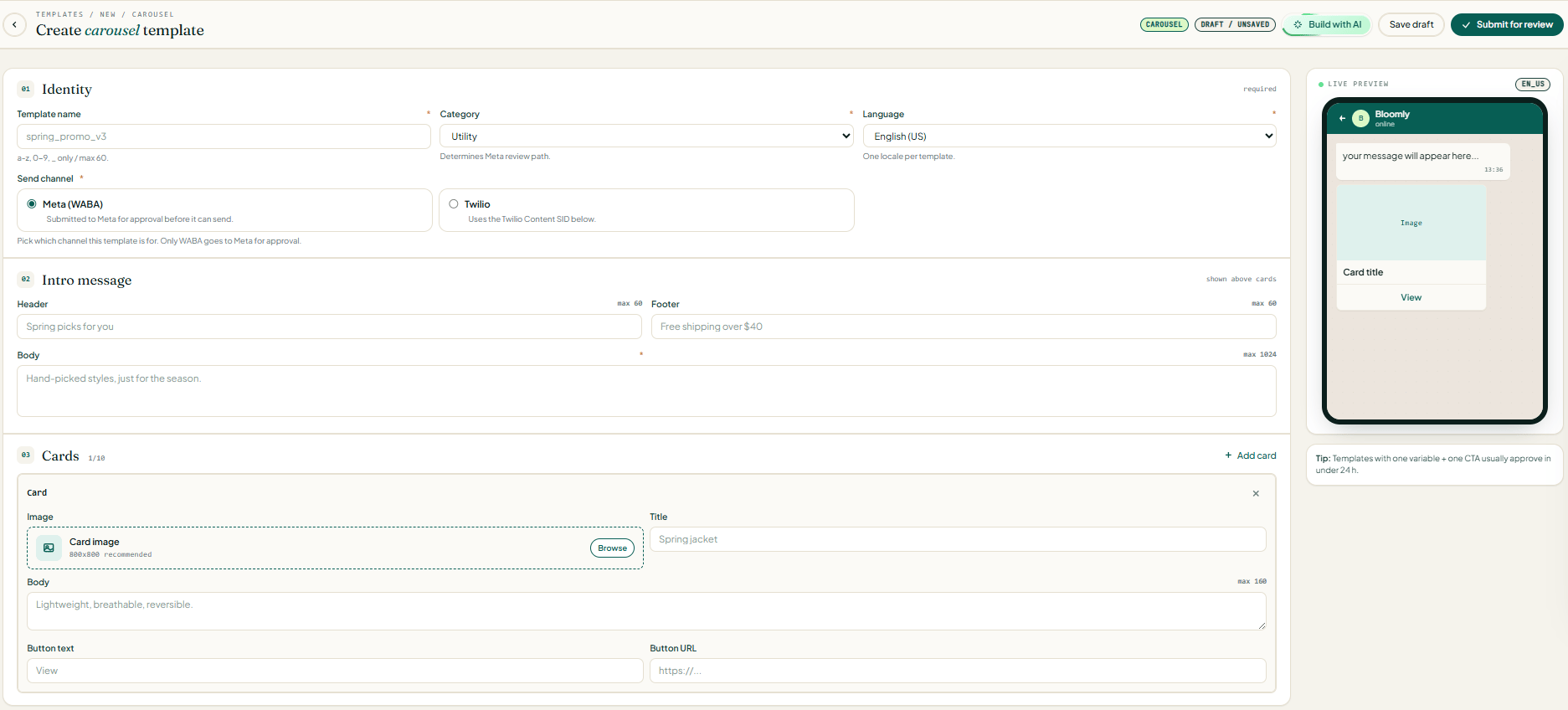 Same four fields as a standard template — **Template name**, **Category**, **Language**, and **Send channel**. Carousel is a distinct template subtype in Meta's system; the "CAROUSEL" tag in the header confirms you're on the right builder.
The intro is the text block that appears **above** the card row in the recipient's chat. It has three parts:
* **Header** — short line above the body (max 60 chars, e.g. `Spring picks for you`).
* **Body** (required) — the lead-in sentence (max 1,024 chars, e.g. `Hand-picked styles, just for the season.`).
* **Footer** — small print under the body (max 60 chars, e.g. `Free shipping over $40`).
Click **+ Add card** to add cards up to a maximum of 10. Every card in a carousel **must have the same structure** — Meta rejects the template if one card has a button and another doesn't. For each card, fill in:
* **Image** — click **Browse** to upload. `800×800` px is recommended; keep every card the same aspect ratio.
* **Title** — short headline shown under the image (e.g. `Spring jacket`).
* **Body** — one or two lines describing the card (max 160 chars, e.g. `Lightweight, breathable, reversible.`).
* **Button text** — the CTA label shown on the card (e.g. `View`, `Shop now`, `Book`).
* **Button URL** — the destination link (`https://…`). You can include a `\{{1}}` variable in the URL to personalize per recipient.
Use the drag handle on each card to reorder — the sequence you set is the order recipients will scroll through. Click the **✕** in the top-right of any card to remove it. The counter next to **Cards** (e.g. `1/10`) tracks how many you've added.
Preview the whole carousel in the **Live preview** panel — it renders the intro message plus the first card with image, title, and button. Once the lint check passes, click **Submit for review** to send it to Meta.
**Carousel requirements at a glance**
* **Minimum 2 cards, maximum 10.**
* Every card must have the **same components** (all with a button, or none — no mixing).
* Image dimensions and aspect ratios should match across cards for a clean scroll.
* Carousel is supported on the **WhatsApp Cloud API** (Meta WABA) send channel. Twilio carousel support varies by account — check your Twilio console before choosing it.
Meta will reject a carousel if any card image is low-resolution, contains heavy text overlays, or if the buttons across cards don't match. Use clean product shots at 800×800 or larger, and keep button text identical (or intentionally varied) across cards.
## Edit Variables and Preview Live
Template variables are written as `{{1}}`, `{{2}}`, and so on. In the editor, each variable is highlighted inline and listed in a **Variables** panel on the right, where you can set a sample value (required by Meta for submission). The **WhatsApp Preview** pane on the right side of the editor renders your template in real time — exactly as it will appear on a customer's phone — updating with every keystroke.
Sample values must be realistic. Meta reviewers read them and may reject a template if samples are placeholder text like "test" or "abc123."
## Pre-Validation Lint Check
Before you can submit, Soneka runs your template through **30+ automated lint rules** modelled on Meta's own approval criteria. The check runs on save and again when you click Submit.
Common issues flagged by the linter include:
* Uppercase body text exceeding 30% of total characters
* Missing or malformed opt-out language in marketing templates
* URLs in the body that don't match a verified domain
* Variable placeholders with no sample value supplied
* Promotional language in utility templates (which can trigger category misclassification)
* Auth templates with custom body copy (not permitted by Meta)
* Carousel cards with mismatched button types across cards
Errors are shown inline with a short explanation and a suggested fix. Warnings are advisory — you can proceed, but Meta may still reject.
## Submit to Meta and Track Status
Resolve all errors (warnings are optional). The **Submit to Meta** button activates once the template is error-free.
Click **Submit to Meta**. Soneka forwards the template to the WhatsApp Business API. You'll see the status change to **Pending**.
Go to **Messaging → Templates** and find your template in the list. The status badge updates automatically. Soneka's median approval time is **18 minutes**, with a rejection rate under 4%.
Soneka surfaces Meta's rejection reason inline. Common causes are visible in the lint warnings you may have skipped. Edit the template, re-run validation, and resubmit — there's no waiting period for resubmission unless Meta flags repeated violations.
## Multi-Language Templates
To reach customers in their preferred language, Soneka lets you create language variants of any template from the same dashboard.
In the template editor, click **Add Language** and select the target locale. A new editor tab opens with the same structure (header, body, footer, buttons) so you can type the translated copy directly.
Click **Add Language → Auto-Translate**. Soneka translates your base template into the selected language using AI and opens the result for your review before saving. Variables, buttons, and structure are preserved automatically.
Each language variant is submitted to Meta as a separate template. Approval is per-variant, so an approved English template does not automatically approve the Spanish version.
## Frequently Asked Questions
Soneka's median approval time is **18 minutes**. Most templates are reviewed automatically by Meta's systems within the hour. Occasionally, a template is escalated to a human reviewer, which can take up to 24 hours.
The most common reasons are: promotional language in a utility template, missing opt-out language, unrealistic sample variable values, and URLs pointing to unverified domains. Soneka's lint check catches most of these before submission — check any warnings you dismissed.
No. Once approved, a template is locked. To make changes, create a new template (you can duplicate the approved one as a starting point), edit it, and submit the new version for approval. The original remains available for sending while the new version is pending.
Meta allows up to 250 approved templates per WhatsApp Business Account (WABA) by default. High-quality senders can request an increase. Soneka surfaces your current count and limit in **Settings → WhatsApp Account**.
**Marketing** templates promote products, offers, or re-engagement. **Utility** templates support an ongoing transaction or relationship — confirmations, updates, and reminders. Utility templates typically have a lower cost-per-conversation on Meta's billing. Soneka's lint check will warn you if your content looks misclassified.
Carousel templates are available on the **Growth** plan and above. Starter plan users can create Standard and Auth templates.
Same four fields as a standard template — **Template name**, **Category**, **Language**, and **Send channel**. Carousel is a distinct template subtype in Meta's system; the "CAROUSEL" tag in the header confirms you're on the right builder.
The intro is the text block that appears **above** the card row in the recipient's chat. It has three parts:
* **Header** — short line above the body (max 60 chars, e.g. `Spring picks for you`).
* **Body** (required) — the lead-in sentence (max 1,024 chars, e.g. `Hand-picked styles, just for the season.`).
* **Footer** — small print under the body (max 60 chars, e.g. `Free shipping over $40`).
Click **+ Add card** to add cards up to a maximum of 10. Every card in a carousel **must have the same structure** — Meta rejects the template if one card has a button and another doesn't. For each card, fill in:
* **Image** — click **Browse** to upload. `800×800` px is recommended; keep every card the same aspect ratio.
* **Title** — short headline shown under the image (e.g. `Spring jacket`).
* **Body** — one or two lines describing the card (max 160 chars, e.g. `Lightweight, breathable, reversible.`).
* **Button text** — the CTA label shown on the card (e.g. `View`, `Shop now`, `Book`).
* **Button URL** — the destination link (`https://…`). You can include a `\{{1}}` variable in the URL to personalize per recipient.
Use the drag handle on each card to reorder — the sequence you set is the order recipients will scroll through. Click the **✕** in the top-right of any card to remove it. The counter next to **Cards** (e.g. `1/10`) tracks how many you've added.
Preview the whole carousel in the **Live preview** panel — it renders the intro message plus the first card with image, title, and button. Once the lint check passes, click **Submit for review** to send it to Meta.
**Carousel requirements at a glance**
* **Minimum 2 cards, maximum 10.**
* Every card must have the **same components** (all with a button, or none — no mixing).
* Image dimensions and aspect ratios should match across cards for a clean scroll.
* Carousel is supported on the **WhatsApp Cloud API** (Meta WABA) send channel. Twilio carousel support varies by account — check your Twilio console before choosing it.
Meta will reject a carousel if any card image is low-resolution, contains heavy text overlays, or if the buttons across cards don't match. Use clean product shots at 800×800 or larger, and keep button text identical (or intentionally varied) across cards.
## Edit Variables and Preview Live
Template variables are written as `{{1}}`, `{{2}}`, and so on. In the editor, each variable is highlighted inline and listed in a **Variables** panel on the right, where you can set a sample value (required by Meta for submission). The **WhatsApp Preview** pane on the right side of the editor renders your template in real time — exactly as it will appear on a customer's phone — updating with every keystroke.
Sample values must be realistic. Meta reviewers read them and may reject a template if samples are placeholder text like "test" or "abc123."
## Pre-Validation Lint Check
Before you can submit, Soneka runs your template through **30+ automated lint rules** modelled on Meta's own approval criteria. The check runs on save and again when you click Submit.
Common issues flagged by the linter include:
* Uppercase body text exceeding 30% of total characters
* Missing or malformed opt-out language in marketing templates
* URLs in the body that don't match a verified domain
* Variable placeholders with no sample value supplied
* Promotional language in utility templates (which can trigger category misclassification)
* Auth templates with custom body copy (not permitted by Meta)
* Carousel cards with mismatched button types across cards
Errors are shown inline with a short explanation and a suggested fix. Warnings are advisory — you can proceed, but Meta may still reject.
## Submit to Meta and Track Status
Resolve all errors (warnings are optional). The **Submit to Meta** button activates once the template is error-free.
Click **Submit to Meta**. Soneka forwards the template to the WhatsApp Business API. You'll see the status change to **Pending**.
Go to **Messaging → Templates** and find your template in the list. The status badge updates automatically. Soneka's median approval time is **18 minutes**, with a rejection rate under 4%.
Soneka surfaces Meta's rejection reason inline. Common causes are visible in the lint warnings you may have skipped. Edit the template, re-run validation, and resubmit — there's no waiting period for resubmission unless Meta flags repeated violations.
## Multi-Language Templates
To reach customers in their preferred language, Soneka lets you create language variants of any template from the same dashboard.
In the template editor, click **Add Language** and select the target locale. A new editor tab opens with the same structure (header, body, footer, buttons) so you can type the translated copy directly.
Click **Add Language → Auto-Translate**. Soneka translates your base template into the selected language using AI and opens the result for your review before saving. Variables, buttons, and structure are preserved automatically.
Each language variant is submitted to Meta as a separate template. Approval is per-variant, so an approved English template does not automatically approve the Spanish version.
## Frequently Asked Questions
Soneka's median approval time is **18 minutes**. Most templates are reviewed automatically by Meta's systems within the hour. Occasionally, a template is escalated to a human reviewer, which can take up to 24 hours.
The most common reasons are: promotional language in a utility template, missing opt-out language, unrealistic sample variable values, and URLs pointing to unverified domains. Soneka's lint check catches most of these before submission — check any warnings you dismissed.
No. Once approved, a template is locked. To make changes, create a new template (you can duplicate the approved one as a starting point), edit it, and submit the new version for approval. The original remains available for sending while the new version is pending.
Meta allows up to 250 approved templates per WhatsApp Business Account (WABA) by default. High-quality senders can request an increase. Soneka surfaces your current count and limit in **Settings → WhatsApp Account**.
**Marketing** templates promote products, offers, or re-engagement. **Utility** templates support an ongoing transaction or relationship — confirmations, updates, and reminders. Utility templates typically have a lower cost-per-conversation on Meta's billing. Soneka's lint check will warn you if your content looks misclassified.
Carousel templates are available on the **Growth** plan and above. Starter plan users can create Standard and Auth templates.