
Prerequisite — the admin sets the provider keys. The AI provider keys (OpenAI, Anthropic Claude, Google Gemini) and voice keys (ElevenLabs for the spoken voice, Deepgram for transcription) are configured once by the platform admin under Admin → AI & API Keys. You don’t paste a key — every assistant uses the admin’s keys automatically. Add a per-assistant key only if you want this one assistant billed to your own account.
How a live call works
Knowing what happens during a call makes every wizard field easier to understand. Each call runs through these steps:1
WhatsApp delivers the call
An incoming call arrives for your number, tagged with the caller’s details and which assistant should answer.
2
The assistant loads your settings
It pulls in the assistant’s configuration and the voice keys for your workspace. If either the transcription key (Deepgram) or the speech key (ElevenLabs) is missing, the call is declined up front so the voicemail fallback handles it — rather than leaving the caller in silence.
3
The call connects
The audio link to the caller is set up and answered.
4
Greeting
As soon as the line is live, the agent speaks a greeting — picked at random from your greeting variations — so the caller never hears dead air.
5
Listen → Think → Speak (loop)
The caller’s speech is transcribed to text in real time (Deepgram). The agent takes the recent ~12 turns plus your behaviour brief and asks the AI model for a reply. That reply is turned into a natural voice (ElevenLabs) and played back. Repeat until the caller says a hangup keyword — then the agent speaks the goodbye line and ends the call.
Creating an assistant
From the AI Call Assistant list, click New assistant. The wizard saves the full assistant state at once, so you can jump between steps freely and click Save at any time.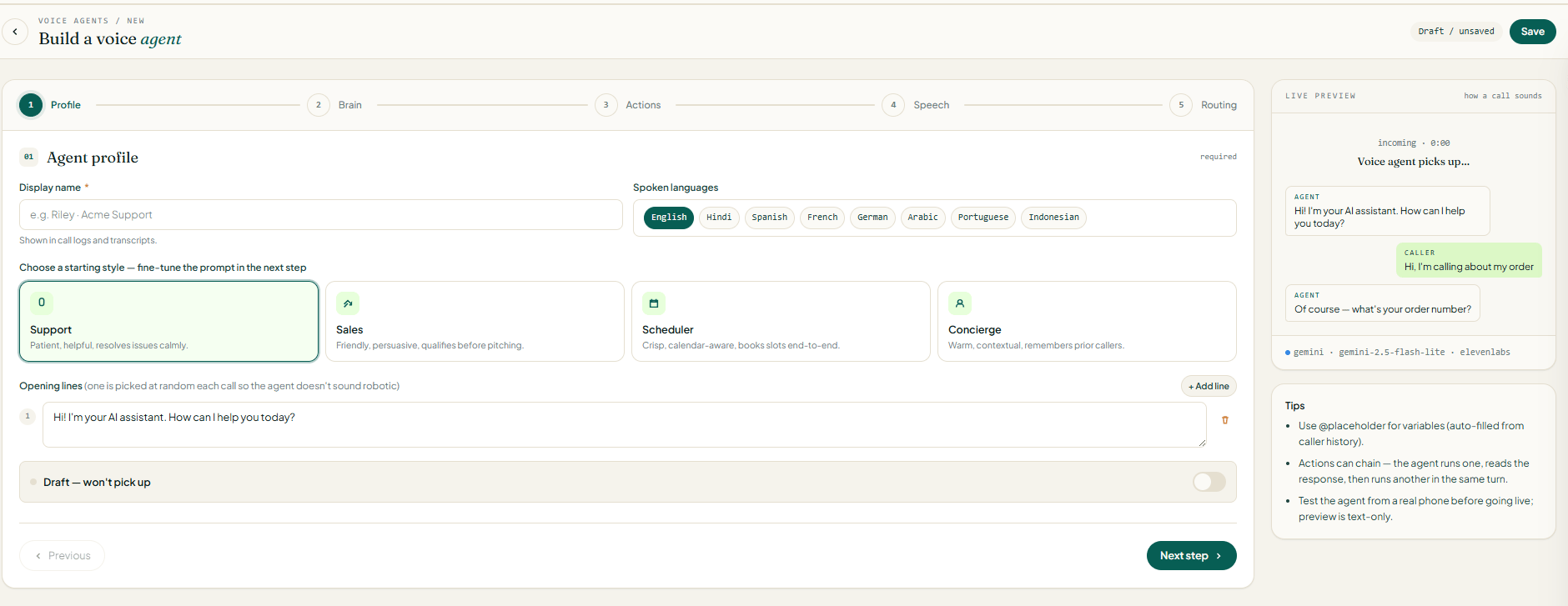
1
Open the wizard
Either click New assistant or open an existing assistant to edit it.
2
Work through the five steps
The side panel shows a live, text-only preview of how a call would read, plus the chosen AI provider and voice.
3
Set the status
Leave it as Draft while building; flip the Live switch in Step 1 when you’re ready for it to answer real calls.
4
Click Save
The assistant is saved to your workspace, and all skills are saved exactly as shown in the form.
5
Test from a real phone
Do this before relying on it — the in-app preview is text-only and doesn’t test the voice or the actual phone call.
Step 1 · Identity & persona
Persona presets
Step 2 · AI Brain
Choose which AI model powers the agent and how it behaves.Model reference
The default for a new voice agent isgemini-2.5-flash-lite — chosen because Gemini responds fastest on voice calls.
Behaviour brief & personality tips
- Behaviour brief. State who the agent is, what to ask for, which skills to use, and when to hand off to a human. Left blank, the agent falls back to “you are a helpful voice assistant on a phone call — reply with one short sentence at a time so the caller can interject.”
- Knowledge source (web link). An optional page the agent can reference so it answers from your own content.
- Warmth / Formality / Pace. Fine-tune the delivery. Pace also keeps the agent concise so it doesn’t over-talk.
- Your own key. Leave blank to use the admin’s key. A saved key shows “saved · leave blank to keep”; an empty box never erases it.
Step 3 · Skills (tools)
A skill lets the agent call one of your web services mid-conversation — to look up an order, book a slot, or create a ticket. The agent is told “call this if the caller asks about X”; when it decides to, it sends a request to your web address with details it picked up from the conversation, then uses the response in its reply. Each assistant can have up to 25 skills.
Skills can chain: the agent calls one, reads the response, then calls another in the same turn. Use
@placeholder tokens in skill values that are auto-filled from the caller’s history. Every skill the agent uses is recorded in the tool-call timeline in Call Logs with its details and the time into the call.
Save behaviour. Saving stores the skills exactly as shown in the form — removing a skill in the form removes it on save. There are never leftover entries.
Step 4 · Voice & listening
Controls how the agent sounds (text-to-speech) and how it hears the caller (speech-to-text).Text-to-speech engine (the voice)
Speech-to-text engine (the listening)
Extras
- Voice ID (max 80) — optional specific voice. Blank falls back to the provider’s default (ElevenLabs uses “Rachel”).
- Your own voice key (max 500) — optional; “blank keeps the saved key” behaviour as with the AI key.
- Background noise suppression (default on) — strips traffic, fan, and keyboard sounds before transcription, improving accuracy on noisy lines.
Step 5 · Routing & recording
Decides what gets recorded, what happens on voicemail, and when to hand off to a person.Voicemail / no-answer behaviour
The three recording switches are independent — a call can have a transcript but no audio, or one side of the audio but not the other.
Your own keys vs admin keys
Both the AI key and voice key are optional and stored securely. Soneka picks which key to use in this order:- Your workspace’s own key. If your plan allows your own keys and your workspace has an active key for that provider, your key is used and usage bills to you.
- Admin’s key. Otherwise the admin’s key is used, and usage counts toward your workspace’s monthly AI usage limit.
- Neither. You’ll see a clear error — and on a live call, the call is declined so voicemail handles it rather than the caller hearing silence.
Managing assistants
- Pause / Go live — switch an assistant between Live and Paused without opening the wizard.
- Duplicate — copies the full configuration and all skills into a new draft named “(copy)”, handy for spinning up a variant.
- Delete — removes the assistant but keeps its call logs readable. Calls already in progress continue; new calls go unanswered.
Cost cautions
- Keep assistants in Draft until tested. A badly written brief that makes the agent ramble inflates both AI and voice spend on every call.
- Prefer lite / mini / haiku models and a concise Pace for high call volume.
- Watch per-call cost on the call detail page in Call Logs, which breaks out the three metered parts: AI usage, transcription, and spoken voice.
- When you use admin keys, AI usage counts toward your plan’s monthly usage limit; hitting it blocks further AI calls until you upgrade or switch to your own key.