
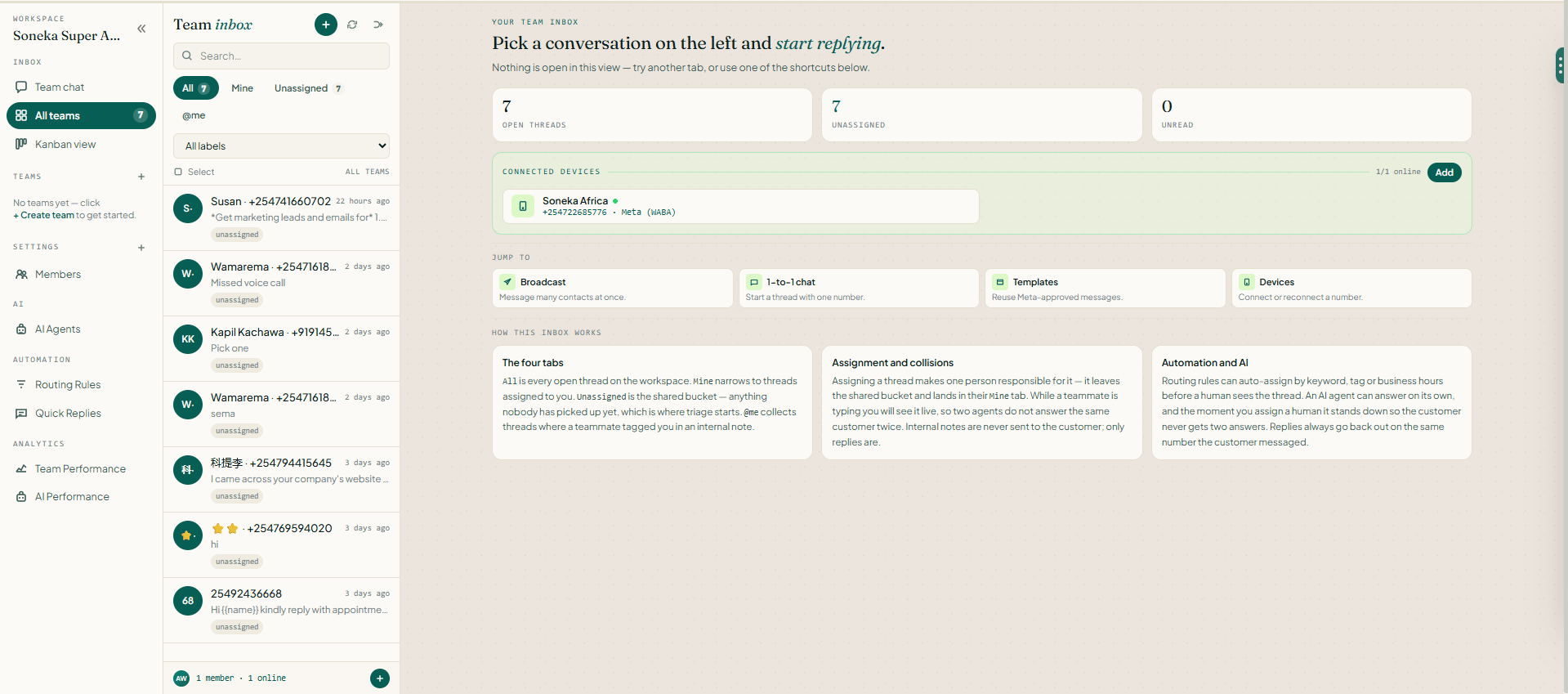
Who It’s For
The Team Inbox is designed for any business that receives a high volume of inbound WhatsApp messages — e-commerce support, financial services onboarding, healthcare appointment management, or SaaS customer success. If more than one person needs to handle WhatsApp at the same time without stepping on each other, Team Inbox is your starting point.Creating a Team
1
Open the team builder
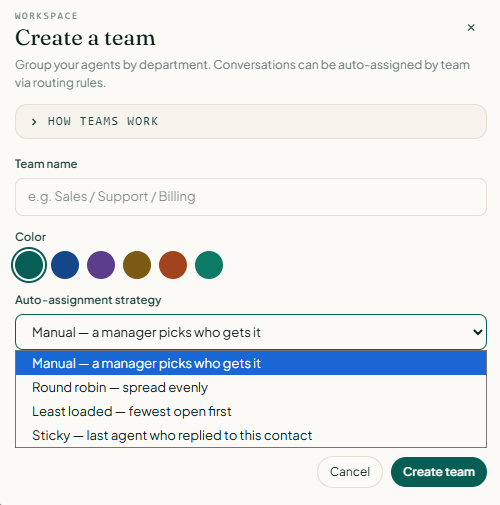
Go to Team Inbox → Teams and click Create a team.
2
Name the team
Enter a short, recognizable Team name — e.g. Sales, Support, Billing. This name shows up in the assignment picker, routing rules, and analytics.
3
Pick a color
Choose a Color from the swatches. The team color appears as a chip in the inbox queue, so operators can spot which team a chat belongs to at a glance.
4
Choose an auto-assignment strategy
Pick how Soneka should decide which agent on the team picks up a new conversation:
- Manual — a manager picks who gets it. Chats land in the team queue and wait for someone to grab them.
- Round robin — spread evenly. Cycles through team members in order.
- Least loaded — fewest open chats first. Balances load in real time.
- Sticky — last agent who replied to this contact. Preserves continuity for returning customers.
5
Create the team
Click Create team. The team is available immediately in routing rules and the manual assign menu.
6
Add agents
Open the Members panel and add agents to the team. An agent can belong to more than one team (e.g. someone who covers both Sales and Billing).
Setting Up Routing Rules
1
Open the rule builder
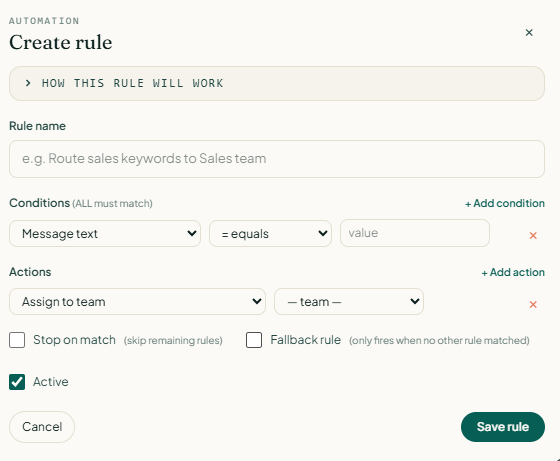
Go to Settings → Automation → Rules and click Create rule.
2
Name the rule
Give it a clear Rule name you’ll recognize later — e.g. “Route sales keywords to Sales team”. Names only show up in the rules list; contacts never see them.
3
Add conditions (ALL must match)
Click + Add condition to add one row per check. Each row has three parts:
- Field — what to check (Message text, Contact tag, Contact attribute, Channel, Time of day, First message, etc.).
- Operator — how to check it (
equals,does not equal,contains,does not contain,is empty,greater than,less than). - Value — what to match against.
4
Add actions
Click + Add action to add one row per thing you want the rule to do. Common actions:
- Assign to team — pick the team from the dropdown.
- Assign to agent — pick a specific person.
- Add tag / Remove tag — organize contacts on the fly.
- Send auto-reply — fire a canned message.
- Start flow — enroll the contact into a flow.
- Set priority — bump the conversation to high/normal/low.
5
Choose how the rule behaves
Two switches at the bottom shape the rule’s behavior in the pipeline:
- Stop on match — when this rule matches, skip all remaining rules. Turn it on for terminal rules; leave it off if you want later rules to run too.
- Fallback rule — this rule only fires when no other rule matched. Use it for your catch-all “assign to General queue” safety net.
6
Activate and save
Make sure Active is checked (uncheck it to keep the rule in place but paused), then click Save rule. The rule takes effect immediately for new conversations.
7
Order the rules
Back on the rules list, drag rules up and down to change evaluation order. Put your most specific rules at the top and your fallback at the bottom.
8
Test with a real message
Send a test message from a WhatsApp number not already in your contacts and confirm the conversation lands where you expect within seconds. Open the conversation’s activity log to see which rule matched.
SLA Timers
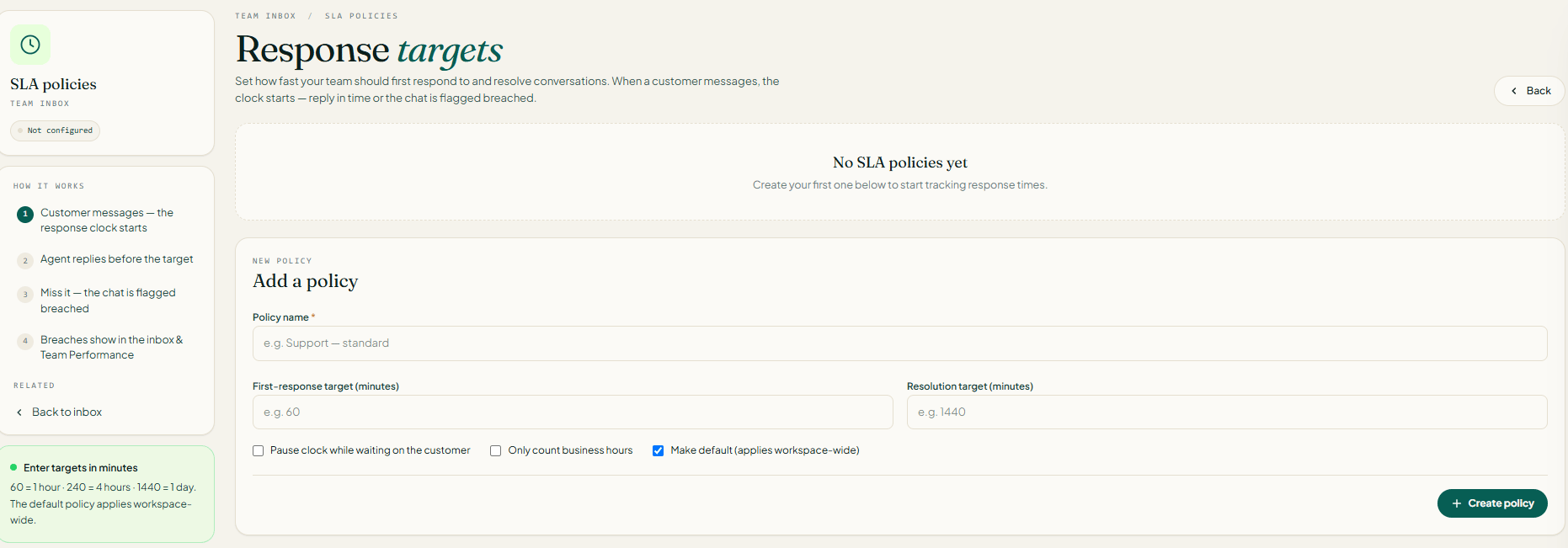
First Response Time
The time from when a contact sends their first message to when an agent sends any reply. Your target appears as a countdown on each conversation card.
Resolution Time
The total time from first contact to the conversation being marked Resolved. Breached SLAs turn red in the Kanban view so leads can triage immediately.
Internal Notes and @Mentions
Sometimes you need to ask a colleague a question without the customer seeing it. Internal notes are private messages threaded directly inside the conversation.- Click the Note tab in the reply composer (or press
Nas a shortcut). - Type your message and use
@to mention a specific teammate — they’ll receive a notification and see the conversation highlighted in their queue. - Notes are rendered in a distinct amber background so they’re never confused with customer-facing replies.
- Notes are searchable and included in conversation exports for audit trails.
Canned Replies
Canned replies are saved response templates that agents can insert with a single keystroke. They support variables that auto-populate from the customer’s profile:
To create a canned reply, go to Settings → Canned Replies → New. To use one in a conversation, type
/ in the reply composer and search by keyword. Select the match and the template inserts instantly, variables already resolved.
Customer 360 Sidebar
Every open conversation displays a Customer 360 sidebar on the right. It surfaces everything Soneka knows about that contact without leaving the chat:Order History
Last 10 orders pulled from Shopify or WooCommerce, including status, value, and date.
Lifetime Value
Total spend across all channels, updated in real time from your connected store.
Sentiment Score
AI-derived sentiment trend from the last 30 days of conversations: positive, neutral, or at-risk.
Tags & Attributes
All contact tags and custom attributes, editable inline without leaving the conversation.
CSAT Surveys
When an agent resolves a conversation, Soneka can automatically send the customer a one-question CSAT survey via WhatsApp. The customer replies with a number (1–5) or taps a quick-reply button.- Enable CSAT under Settings → CSAT → Enable on Resolve.
- Set a delay (e.g., send 10 minutes after resolution) to avoid surveying mid-flow.
- Results appear in Reports → CSAT broken down by agent, team, inbox, and time period.
- Low CSAT responses (1–2) can trigger an automatic re-open or escalation alert.
Keyboard Shortcuts and UI Tips
Speed up agent workflows with these built-in shortcuts:
The Kanban view groups conversations by status (Open, Pending, Resolved) and visually highlights SLA breaches in red — useful for team leads doing a morning review without opening individual threads.
Frequently Asked Questions
Can multiple agents reply to the same conversation?
Can multiple agents reply to the same conversation?
Soneka’s collision detection shows a banner inside the conversation when a second agent opens the reply composer, warning both parties that someone else is typing. Only one reply is sent at a time. We recommend assigning conversations explicitly to a single agent for accountability, but supervisors can always intervene.
What happens to a conversation when the assigned agent goes offline?
What happens to a conversation when the assigned agent goes offline?
If an agent’s status changes to Away or they log out, any open conversations remain assigned to them but are also flagged in the unassigned queue view. A team lead can reassign them manually, or you can set an automatic re-routing rule under Settings → Routing → Away Behavior.
How do I prevent agents from seeing conversations outside their team?
How do I prevent agents from seeing conversations outside their team?
Navigate to Settings → Teams, create a team, and toggle Private Inbox on. Agents only see conversations routed to their team. Admins always have full visibility across all inboxes.
Can I export conversation history?
Can I export conversation history?
Yes. Go to Reports → Conversations → Export, choose a date range and inbox, and download a CSV or JSON file containing full message transcripts, agent assignments, note history, and SLA timestamps.
Does Team Inbox work on mobile?
Does Team Inbox work on mobile?
Soneka’s web app is fully responsive and works on mobile browsers. A dedicated iOS and Android app is on the roadmap. For now, agents on the go typically pin the Soneka web app to their home screen for quick access.
Is Team Inbox available on the free Starter plan?
Is Team Inbox available on the free Starter plan?
The Starter plan includes Team Inbox with up to 3 agents and basic round-robin routing. Skill-based routing, capacity caps, SLA policies, and CSAT surveys require the Growth plan ($96/mo) or above.