
Overview
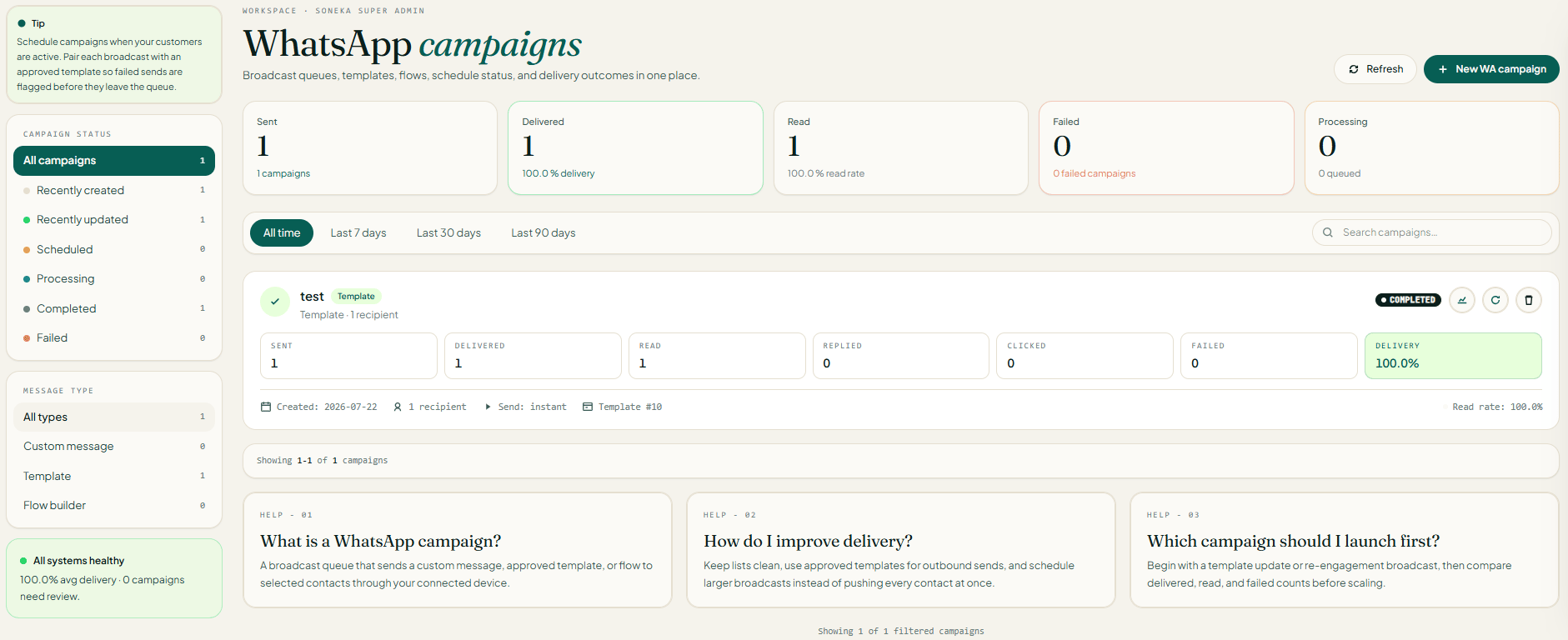
Access: Campaigns require the Admin workspace role and a plan that includes the Campaign feature. Your plan also sets a limit on how many campaigns the workspace can create.
Engines & Templates
A campaign always sends through the workspace’s active engine. The template requirement differs by engine: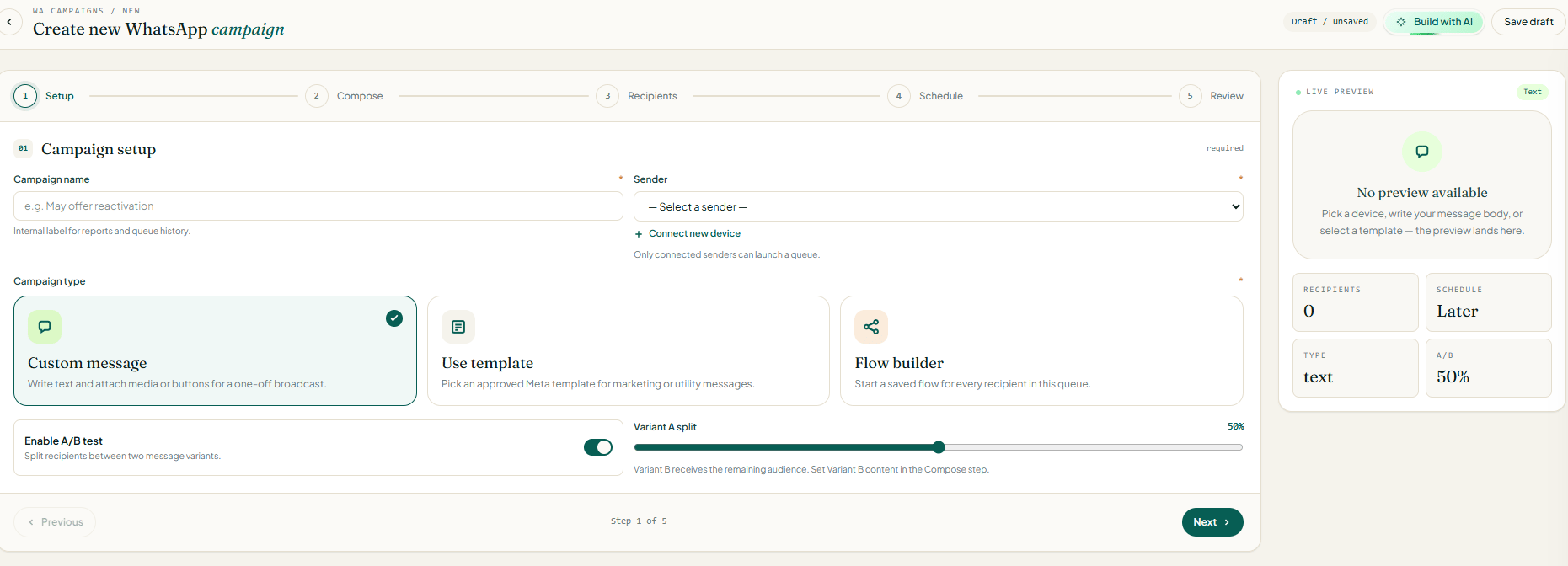
Message Types
Step 1 (Setup) sets the campaign type, which decides what the Compose step shows and how the outgoing message is built:
For approved template campaigns on the Business API, Soneka builds the full rich message (buttons, carousel cards, media headers, even authentication-code structure) and wraps links for click tracking. Carousel cards are supported: each card’s title, body, footer, and link buttons are filled in and tracked individually.
Personalization & AI Copy
Bodies, headers, footers, and button labels are personalized in two steps:1
Workspace-wide values first
Placeholders that are the same for everyone — for example
{{promo_key}}, {{order_id}}, or numbered placeholders like {{1}} — are filled in once for the whole campaign.2
Per-contact placeholders second
Then these placeholders are filled in for each recipient:
Build with AI
The Build with AI button drafts a complete campaign from a short brief:1
Pick a model
Soneka lists the text AI models your admin has enabled (OpenAI, Anthropic, Google); voice-only providers aren’t offered here.
2
Fill in the brief
Business name (required), product, goal, audience, offer, preferred call-to-action label and link, tone, and any notes.
3
Review and edit
Soneka generates a campaign name, a message body (with
*bold* / _italic_ formatting and an optional {{name}} placeholder), an optional footer, a primary button label and link, and up to three quick replies — all pasted straight into the builder for you to edit.Audience, CSV & Dedup
The Recipients step builds the send list from up to four sources, in any combination:1
Contacts
Pick individual contacts.
2
Contact groups
Pick groups, and Soneka pulls in each group’s members for you.
3
Manual numbers
Paste numbers into the box, one per line or separated by spaces, commas, or semicolons.
4
CSV upload
Upload a
.csv or .txt file (up to 5 MB). Soneka detects a header row (looking for columns like name, phone, mobile, number, or contact) and reads the phone column, falling back to the first column.Tip: Contacts already unsubscribed at the workspace level are flagged in the campaign’s recipient analytics, and a reply containing a STOP or UNSUB keyword unsubscribes that contact workspace-wide, so future campaigns and broadcasts automatically skip the number.
A/B Testing
On the Review step you can enable A/B testing to compare two templates against one audience:1
Toggle A/B testing on
2
Pick template A and template B
3
Set the split percentage
Use the slider (10–90, default 50) to choose the share of the audience that receives variant A.
Scheduling
The Schedule step offers three send modes:
The time zone you pick defaults to your workspace time zone, so a campaign set for “9:00 AM Asia/Kolkata” fires at that local moment no matter where the server is. Recurring runs use that same local time, so the clock time stays the same across daylight-saving changes — “9 AM every week” stays 9 AM.
How scheduled campaigns fire. The background service that powers WhatsApp checks every 30 seconds for any campaign whose time has come and sends it — using the same path as Send now, with safeguards so it never sends twice. A scheduled campaign therefore goes out within about half a minute of its scheduled time, as long as the connection is up.
Campaign & Recipient Statuses
A campaign carries an overall status, while every recipient tracks its own delivery state. The detail page updates live (about every 15 seconds), so the tiles and the status pill update while a send is in progress.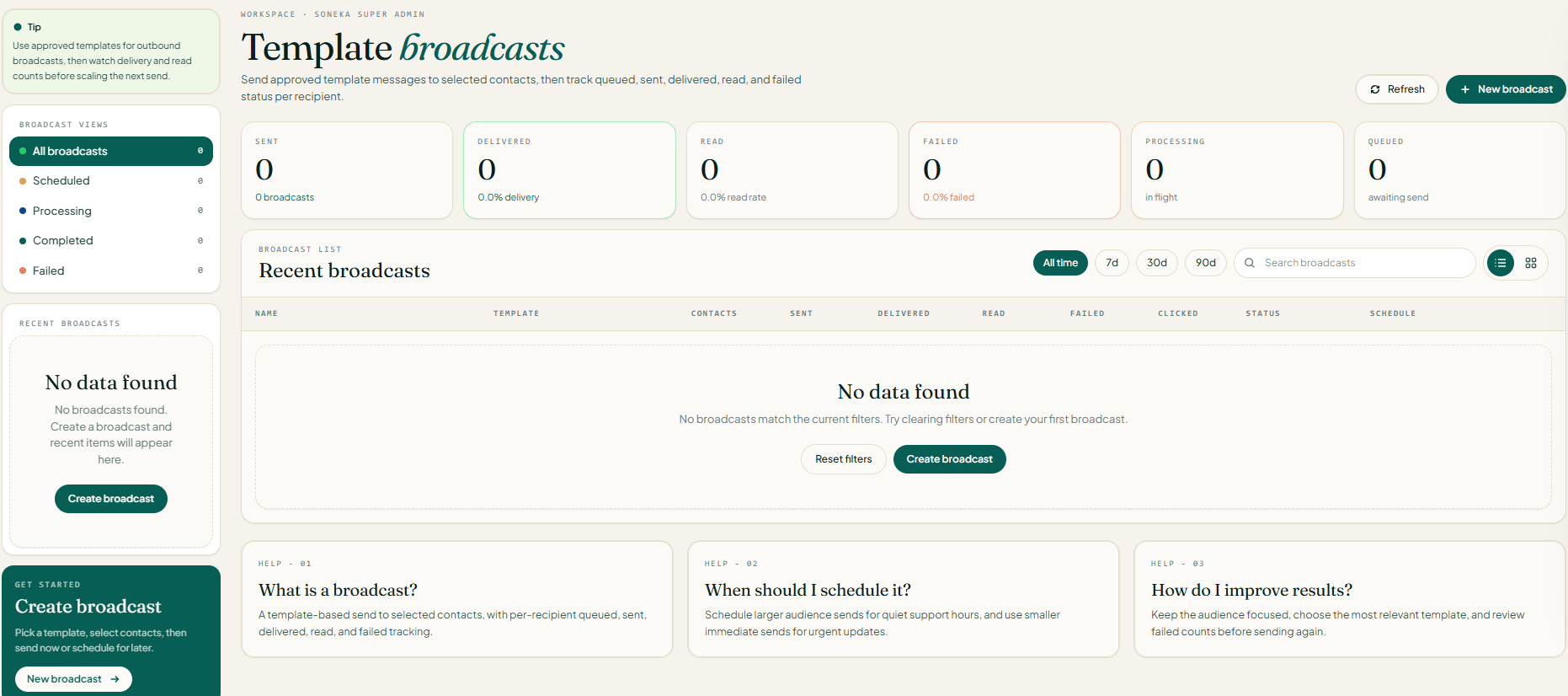
Campaign status
Per-recipient status
Common failure reasons include “No mobile number on contact”, “Out of credits”, “Empty message body”, a Meta/provider error message, or (for flow campaigns) “Sending service unreachable”. Late or out-of-order updates only ever move a recipient forward (queued → sent → delivered → read), never backward. The detail tiles add Delivered, Read, Replies, and Clicks as those signals arrive, and the headline counts are recalculated on every update so repeated reports never double-count.
Wallet Charge & Refund-on-Fail
Campaign sends are billed against your wallet, one credit per recipient. The accounting is built to never overcharge:1
Wallet check
Before each send, Soneka checks the wallet. If it can’t cover the message, the recipient is marked failed with “Out of credits” and no charge is taken.
2
Charge just-in-time
The credit is charged just before the message is sent.
3
Mark sent on success
If WhatsApp accepts the message, the recipient is marked sent.
4
Refund on failure
If the send fails for any reason, the recipient is marked failed and the charge is refunded automatically, with the failure reason attached.
Send, Pause, Resume, Cancel & Retry
From the campaigns list and the detail page you can act on a campaign throughout its life:
To recover from failures, fix the cause first (reconnect the number, top up credits, correct a media link), then re-run the campaign. Each failed recipient shows its own error, and the retry backlog tile on the list page shows the total number of failed recipients across the workspace so you can spot a systemic problem at a glance.
Tip: The list filters (status, message type, date range) and live search update without a full page reload. Sidebar counts always reflect the whole workspace, not the current filter.
Ban-Safety & Pacing
Sending at scale on WhatsApp carries a real risk of a number being rate-limited or banned — especially on the Unofficial API. Soneka paces every bulk send using safety controls your admin sets under Admin → Settings → System Message → Sender pacing:
Soneka also guards against sending into a dropped Unofficial API connection: if the connection drops mid-run, the job is paused (instead of marking every remaining recipient as failed) and the paused state is shown in the dashboard.