
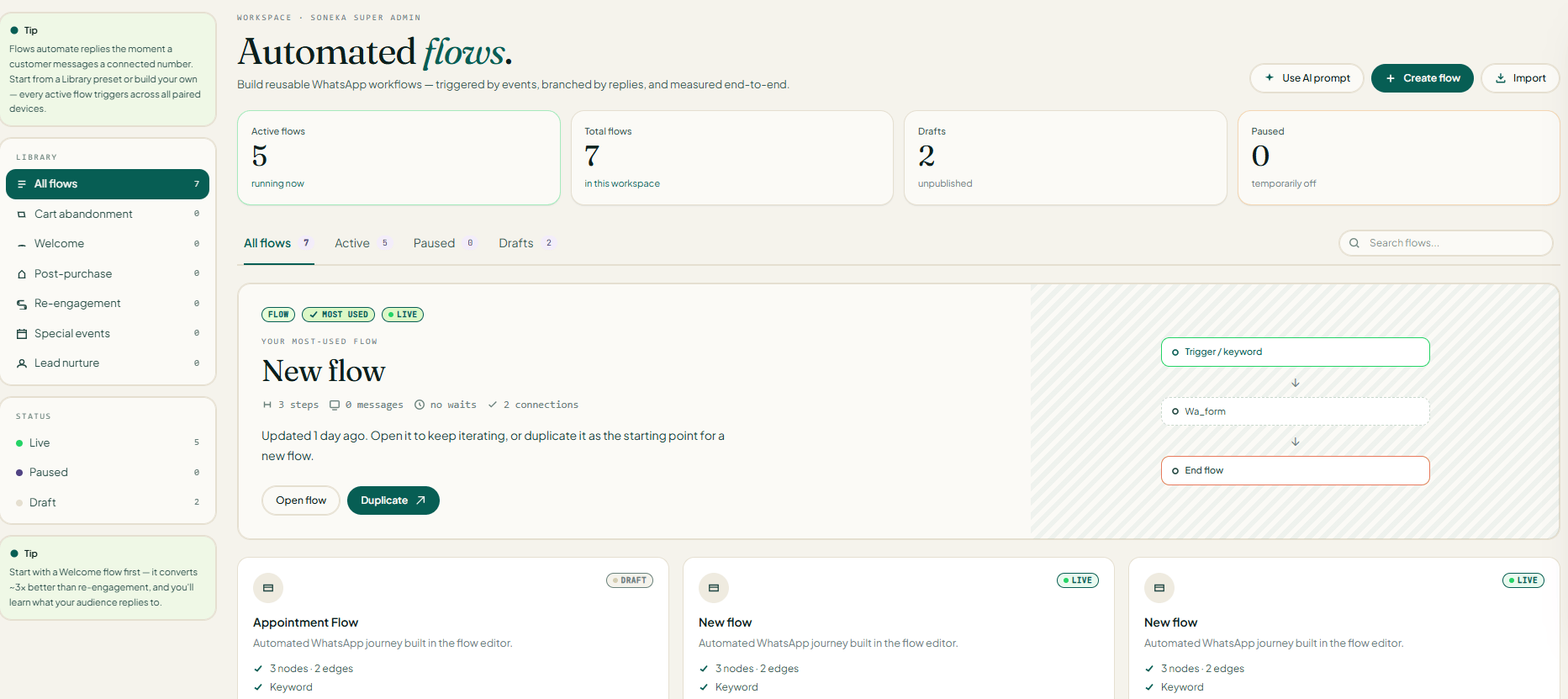
Works with any engine. The builder runs on all three WhatsApp connections. The same step sends correctly whether your number is on the Unofficial API, the official Cloud API, or Twilio. Where a connection can’t show something the normal way (Twilio has no tappable buttons or lists, for example), Soneka falls back to a numbered text menu and reads the number the customer types back. See Engine notes.
Two Kinds of Flow
When you click New flow, Soneka asks which kind you want to build: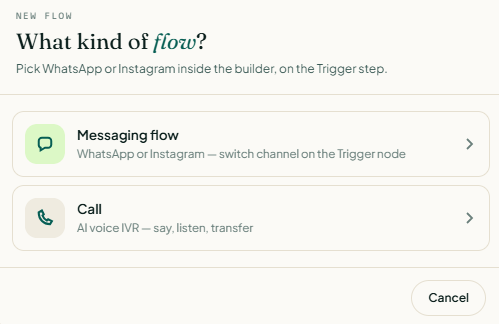
The canvas, connectors, variables, and trigger concept are the same for both — only the step palette changes. Everything below applies to messaging flows unless the section is explicitly labeled Call flow. Jump to Call flow step reference for the voice palette.
Flows vs. Broadcasts
Flows and broadcasts work together. A common pattern: send a broadcast to re-engage a lapsed customer, then enroll anyone who replies into a flow that qualifies their interest and routes them to a sales agent.
Core Concepts
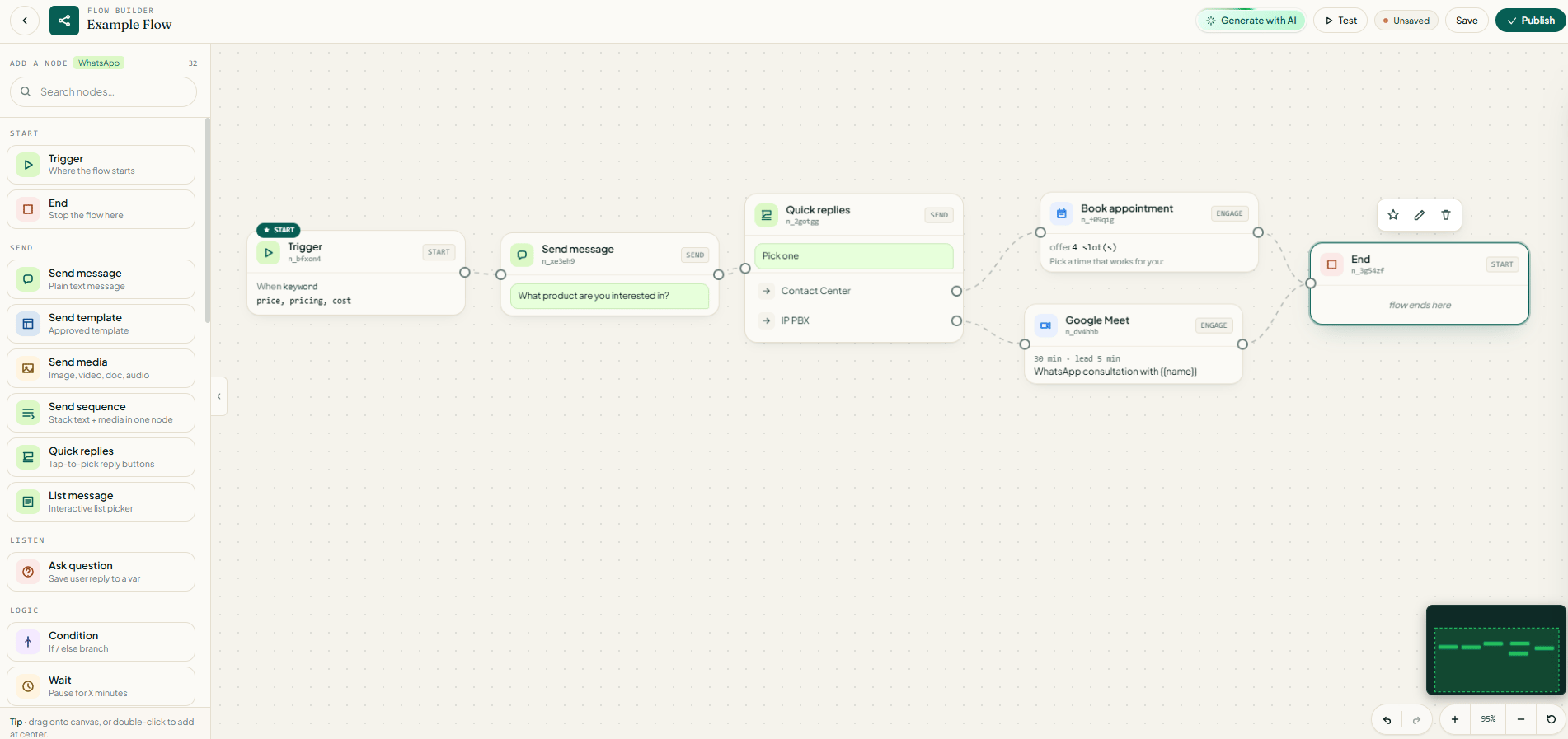
- Draft → Live → Paused. A new flow starts as a draft. Publishing makes it live. Turning a live flow off makes it paused — it stops enrolling new contacts but keeps its design intact. The flows list shows each flow’s status.
- Trigger step. Exactly one per flow, always the first step. Every save records the trigger so Soneka can quickly find which flows a tag or group should start.
- Variables & merge tags. Question steps save the customer’s answer into a named variable. Reuse it later in any message with a
{{var}}tag (e.g.Thanks {{name}}!). Soneka fills in the saved value when the message is sent. - Branches. Some steps split the path. A Condition has
yes/no; Book Appointment hasbooked/no slots; commerce steps havepurchased/abandoned; multi-option steps (Buttons, List, Poll) give one branch per option. - Subscribers. Every contact running through a flow is a subscriber, shown as
active,paused,completed, orfailed. You can view and pause/resume them per flow. - Scoped to workspace and connection. Flows belong to a workspace, and the list shows the flows for your workspace’s current WhatsApp connection. Any teammate with the admin role can build and manage them.
Triggers
The trigger’s type decides how contacts enter the flow. There are four types:Setting the trigger
1
Open the trigger step
Open the flow and click the trigger step (always first on the canvas).
2
Pick the type
In the side panel, choose Keyword, Tag added, Group join, or Manual enroll.
3
Fill in the specifics
- Keyword — type a comma-separated list (e.g.
hi, hello, start). - Tag added / Group join — pick the real tag or group from the dropdown.
- Manual enroll — no config; you’ll add contacts from the Enroll action later.
4
Optionally bind a device
Choose which connected number launches the flow (see Device binding).
5
Save
Save the flow. If you later rename a tag or change the trigger type, just save again to keep everything in sync.
How matching works. When a tag is added or a contact joins a group, Soneka finds the published and active flows whose trigger matches and enrolls the contact into each one. Keyword triggers are matched against incoming messages. A draft or paused flow never enrolls anyone.
Step Reference
The palette groups steps by purpose, matching what you see on the builder’s left panel. “Branches” shows where you can wire the path onward from that step.Start
Send
Listen
Logic
Condition checks:
equals, does not equal, contains, does not contain, greater than, less than, and is empty. Text comparisons ignore capitalisation and surrounding spaces; greater than / less than treat both sides as numbers. With several rules you choose AND/OR between them; the flow takes the first match.
AI
Contact
Engage
Commerce
For all three commerce steps,
purchased runs when the customer buys; abandoned runs after the wait time if they don’t.
Integrations
CRM
If a step ever can’t be understood (for example, after a future change), it’s skipped with a warning rather than breaking the whole flow.
Connection notes (quick view): the WhatsApp form step only works on the Cloud API. The Google steps need the workspace’s Google account connected (same connection used for Calendar). The MySQL Query step needs a MySQL connection configured under Settings → Integrations. On Twilio, tappable steps (Quick replies, List message, Call to action) become numbered text. Full detail in Engine notes.
Call Flow Step Reference
When you pick Call at the “What kind of flow?” prompt, the canvas loads a voice-specific palette in place of the messaging one. Everything else about the builder — trigger, variables, branches, subscribers, save/publish — works exactly the same way. Call flows run on Soneka’s voice engine and drive AI Call Assistant sessions.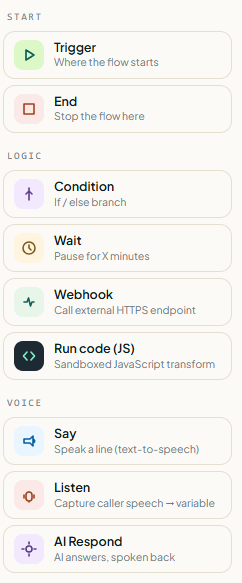
Start
Logic
Voice
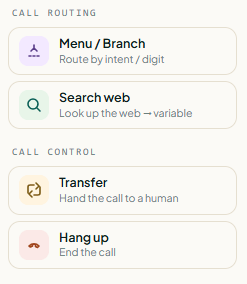
The voice steps are the heart of a call flow — they’re what actually happens on the phone.Call Routing
Call Control
Call flow prerequisites. Call flows require the AI Call Assistant feature to be enabled on your plan and at least one voice-capable number configured. Transcripts, recordings, and the timeline of steps that ran on each call are available in Call Logs.
Build & Connect a Flow
1
Create the flow
Go to Flows → Create Flow (or open an existing one to edit). Give it a name and optional category.
2
Set up the trigger
Click the trigger step first — pick the type and, where relevant, the tag, group, or keywords. See Setting the trigger.
3
Drag steps onto the canvas
The palette lives on the left. The canvas reads left to right.
4
Connect the steps
Drag from a step’s output to the next step. Branching steps have several outputs — wire each to a different next step. For a Condition wire
yes and no; for Buttons/List wire one per option; for commerce wire purchased and abandoned.5
Configure each step
Open each step and fill in its settings. Use
{{var}} tags in any message to reuse answers captured by earlier Ask steps.6
End every branch
Finish each branch with an End step or a final message. An unconnected branch simply ends the flow there.
7
Save and publish
Click Save to store the flow, then Publish to make it live. Use Pause later to stop enrolling new contacts without deleting.
Variables tip. An Ask step saves into the variable you name (default
answer); Buttons/List save into choice by default; the AI assistant saves into reply; a Webhook saves the response into response. Pick clear names and reuse them as {{name}}, {{choice}}, etc.Build with AI
The builder can generate a starter flow from a plain-language description. Describe the automation (for example, “Greet the customer, ask their name, then offer a list of services and book an appointment”) and Soneka drafts a full flow — steps and connections — onto the canvas for you to refine.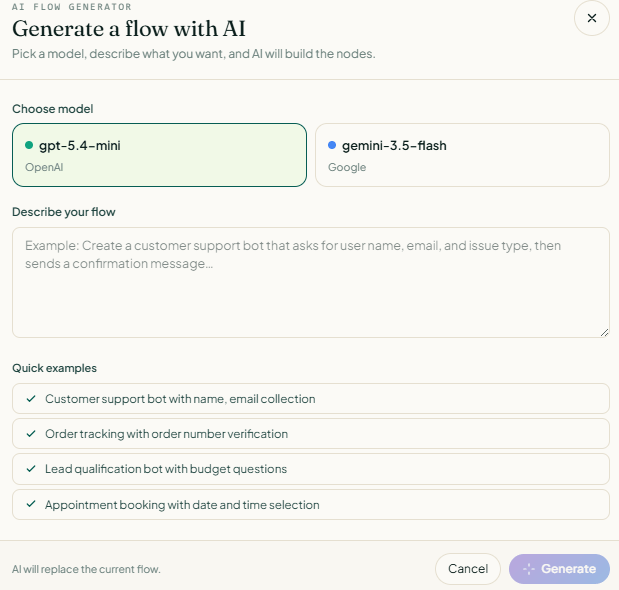
1
Open AI generate
In the builder, click AI generate.
2
Pick a provider and model
You can only pick the ones your admin enabled under Settings → AI.
3
Describe your flow
Type your description (up to 2000 characters) and generate.
4
Review and refine
Edit the result on the canvas, then save and publish as usual.
{{var}} tags, and no emojis — and the result is capped at up to 20 steps before it appears on the canvas. You’ll get a clear error if the provider isn’t enabled or the AI returns something unusable.
Device Binding
A flow sends from one of the workspace’s connected numbers. You can pick a specific number on the trigger step, or leave it unset to use the workspace default.- The number picker matches your connection: on the Unofficial API it lists your paired, active phones; on the Cloud API or Twilio it lists your connected numbers.
- If you pick a number, the flow uses it — as long as it’s still active and in this workspace.
- If you don’t pick one (or the chosen one is gone), the flow uses the workspace’s first active number.
- If no number is available when the flow tries to launch, the subscriber is marked failed with “No connected device for this workspace” — connect a number and enroll the contact again.
Google, Commerce & Media Pickers
- Google pickers. The Google Sheets / Docs / Form steps let you pick a real spreadsheet, template document, or form from your connected Google account, and match its placeholders or columns to flow variables. These steps need the workspace’s Google account connected — the same connection used for Calendar and appointments.
- Commerce pickers. The WhatsApp Shop / WooCommerce / Shopify steps let you pick a store and then choose products from it. Product details (name, image, price) are saved with the step so the cards display instantly. Older flows keep working — their products are upgraded automatically.
- Media upload. The Media and Sequence steps accept image, video, audio, and document files. Uploads are capped at 50 MB.
Enrolling & Subscribers
- Keyword / tag / group flows enroll contacts automatically when the matching event happens — but only while the flow is published and active.
- Manual-enroll flows are added by you: open the flow, choose contacts or a group, and enroll. The flow must be active. Enrolling the same contact twice does nothing if they’re already running; a contact who previously failed gets retried.
- Subscriber states:
active,paused,completed,failed. The flow’s detail panel lists subscribers with their state, when they were enrolled, and any failure reason; the flows list shows active/completed/failed counts per flow. - Pause / resume a subscriber. Pausing keeps that contact from being re-enrolled by tag/group triggers while you keep them muted — it doesn’t stop a conversation already in progress. Resuming clears the pause and any failure, but deliberately doesn’t restart the flow (that would double up on contacts mid-conversation).
How a Flow Runs
When a contact is enrolled, Soneka starts a live conversation for that customer and works through the steps:- Step by step. The flow begins at the first step and follows the connections. After each step it takes the branch the customer’s reply chose and runs the next step. When a branch has nothing connected, that path ends.
- Reading replies. For Buttons, List, Poll, and Ask-with-options, the customer’s reply chooses a branch. WhatsApp can send a reply in several different forms, and Soneka understands all of them, so a tap is routed correctly on any device or carrier. Typing a plain number (
1,2…) also works as a fallback. - 1-hour wait window. A step that waits for the customer (List, Buttons, Ask, Poll, commerce) keeps the conversation open for up to 1 hour. Idle conversations are cleaned up after that — long enough for a person to read and tap, short enough not to pile up.
- Delays. A Delay step simply waits the time you set before moving on.
- Commerce waits. A commerce step pauses for the wait time you set. If the customer buys, the flow takes
purchased; if the time runs out first, it takesabandoned. The conversation isn’t cancelled while waiting — a late reply can still produce a checkout link. - Appointments. Book Appointment fetches open slots, sends them as a list, books the chosen one on your calendar, sends a confirmation, and takes
booked(orno slotsif nothing is free or the reply can’t be matched).
Engine Notes
Each step is sent through your workspace’s current WhatsApp connection. Behaviour differs as follows:- Tappable steps fall back on Twilio. Twilio handles interactive content differently, so Soneka shows a numbered text menu and reads the number the customer types. Flows stay fully usable on Twilio.
- WhatsApp Form is Cloud API only. The step does nothing on the Unofficial API or Twilio; it needs a published WhatsApp Form.
- Google steps need the Google connection. Connect Google (the same one used for Calendar and appointments) before using Sheets, Docs, Form, or Meet.
- Branding footer. If your plan adds a branding footer, it’s automatically appended to outgoing text and interactive messages (templates excepted).
Manage Flows
- Duplicate. Copies a flow as a fresh draft (titled with
(Copy)) so you can iterate without touching the live version. - Pause / Resume. A paused flow stops enrolling new contacts but keeps its design.
- Publish / Unpublish. Publishing makes the flow live; unpublishing returns it to draft.
- Delete. Removes the flow. Flows belong to your workspace; teammates in the same workspace can manage them.
- Filter. The list filters by status (live / paused / draft), category, and name, and highlights your most-used flows.
- Plan limits. Your plan sets how many flows you can create. Editing existing flows doesn’t count against the limit.
Troubleshooting
Testing a Flow Before Going Live
1
Open Test Mode
In the flow editor, click Test in the top bar. Enter your own WhatsApp number as the test contact.
2
Simulate the Trigger
Manually fire the trigger event — send the keyword from your phone, or click Simulate Webhook to inject a test payload.
3
Step Through the Flow
The canvas highlights the active node in real time as your test conversation progresses. Send replies from your phone and watch the flow branch correctly.
4
Inspect Variables
The test panel shows the current value of every flow variable at each step — useful for debugging webhook responses and conditional logic.
5
Publish
Once satisfied, click Publish. The flow goes live immediately. You can unpublish at any time without deleting the flow.
Example Use Cases
Cart Abandonment Recovery
Trigger on a Shopify abandoned_checkout webhook. Wait 1 hour, send a reminder with the cart contents and a discount code. If no purchase after 24 hours, send a final nudge. Tag purchasers so they exit the flow immediately.
OTP Delivery
Receive a webhook with a phone number and OTP code from your auth service. Use a Message node to send the OTP. Confirm delivery via webhook callback. Branch on delivery failure to retry or notify your backend.
Appointment Reminders
Trigger on a scheduled time pulled from your booking system via webhook. Send a reminder 24 hours before. Use an Input node to let customers confirm (
1), reschedule (2), or cancel (3). Branch each response to the appropriate action and update your backend.Frequently Asked Questions
Is there a limit to how many nodes a flow can have?
Is there a limit to how many nodes a flow can have?
There is no hard node limit. Flows with 200+ nodes are supported — use the collapse feature to keep the canvas manageable. Performance is unaffected by flow size since execution is server-side and node-by-node.
Can a contact be in multiple flows at the same time?
Can a contact be in multiple flows at the same time?
By default, a contact can only be in one instance of a given flow at a time. You can override this in Flow Settings → Allow Concurrent Instances for use cases like appointment-reminder flows that a contact might legitimately enter multiple times.
How does the AI Reply node handle sensitive topics?
How does the AI Reply node handle sensitive topics?
The AI Reply node uses the system prompt you define to constrain the model’s behavior. You can explicitly instruct it to decline certain topics, escalate to a human for sensitive requests, or only answer questions within a defined scope. PII is always redacted before the prompt is sent to the model.
What happens if a Webhook node call fails?
What happens if a Webhook node call fails?
The Webhook node has a configurable retry policy (0–3 retries with exponential backoff). After exhausting retries, it routes to the On Error output branch, which you can connect to a fallback Message node or an Assign node to hand off to a human agent.
Can I use Flow Builder without coding knowledge?
Can I use Flow Builder without coding knowledge?
Yes. The visual canvas, AI Copilot, and pre-built templates mean most flows can be built without writing a single line of code. The Webhook node requires knowing your API endpoint URL and expected response structure, which a developer or no-code-savvy operator can handle.
Which plans include Flow Builder?
Which plans include Flow Builder?
Flow Builder is available on Growth (320/mo). Enterprise plans include custom AI model fine-tuning and dedicated flow review from Soneka’s solutions team.